Step by Step Guide to Enrolling in Workspace ONE Intelligent Hub:
To access the private Starbucks Partner Hours app, partners must first enroll their personal device into the Starbucks Mobile Device Management (MDM) system using the Workspace ONE Intelligent Hub. Follow these steps precisely to ensure a successful installation.
What is Workspace ONE Intelligent Hub?
In the world of Starbucks Partner Hours QR code setup, Workspace ONE Intelligent Hub is the “secure gatekeeper”. It isn’t actually the app where you’ll see your schedule; rather, it is a private enterprise platform that Starbucks uses to protect both your data and the company’s information.
Because our scheduling and payroll tools contain sensitive info like your pay statements and PTO balances, Starbucks doesn’t just put them on the public App Store for anyone to download.
Instead, you download the Intelligent Hub first, which then allows you to securely “enroll” your device to access the actual SBUXPartnerHrs (or WorkJam) application.
Privacy Humanization: What the Hub Can (and Can’t) See.
Is Starbucks going to see my private photos or read my messages?
I know what you’re thinking because I thought it too: “Is Starbucks going to see my vacation photos or read my texts?”
The quick answer is a definitive no.
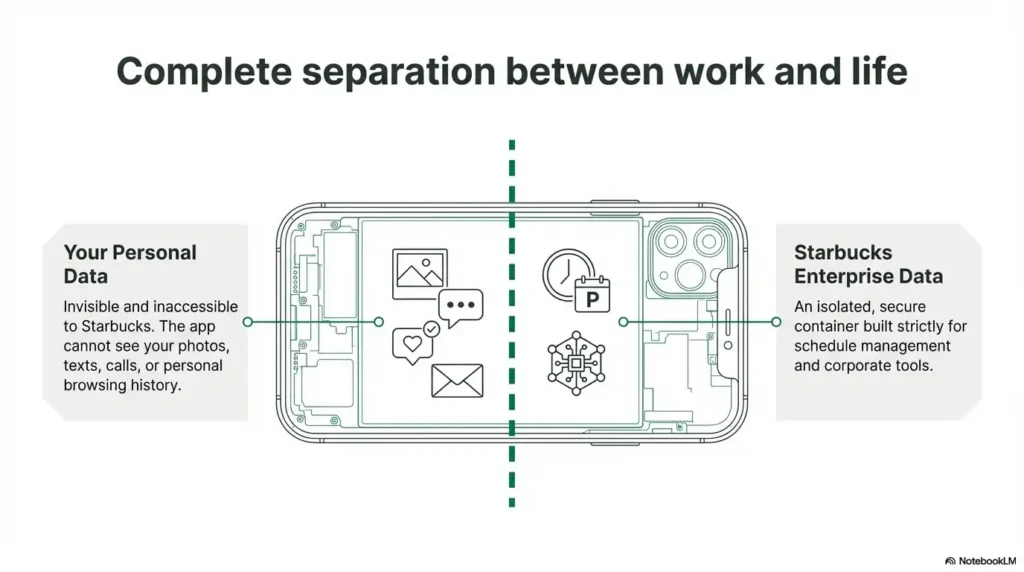
When you go through the Starbucks Partner Hours QR code setup, the Intelligent Hub is specifically designed to isolate work data from your personal life.
According to the official partner guides, the Hub cannot access the following:
Your personal photos or videos.
Your private text messages (SMS/MMS) or call logs.
Your personal email or iCloud/Google accounts.
Any apps you’ve downloaded yourself from the public App Store.
It only “manages” the specific Starbucks apps and configurations it needs to keep our store data safe. This is why Android users will notice a “Work Profile” being created—it’s a physical digital wall between your barista life and your personal life
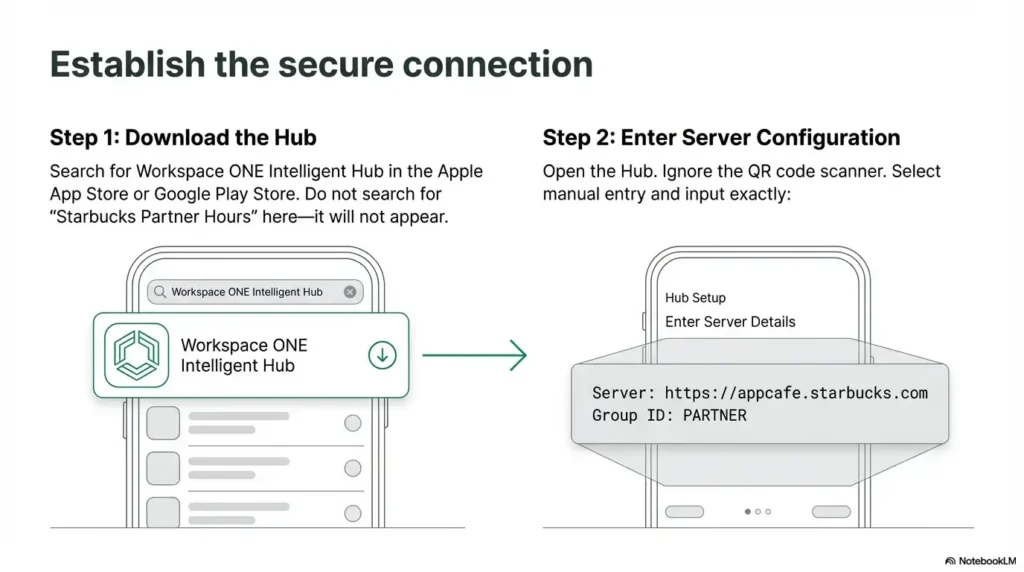
Step:1 How to Download the Hub App:
Download the Workspace ONE Intelligent Hub app from your device’s official app store (Google Play Store for Android or Apple App Store for iOS). This is the first requirement for the Starbucks Partner Hours app download process.
Step 2: Initialize the Application:
Open the Workspace ONE Intelligent Hub app on your smartphone.
Step 3: Connect to the Starbucks Server:
You must now point the app to the Starbucks internal network. You can do this by scanning the official QR code found on the Partner Hub at your store, or by manually entering the following details:
Server URL: https://appcafe.starbucks.com
Group ID: PARTNER (Note: This must be entered in all capital letters to work).
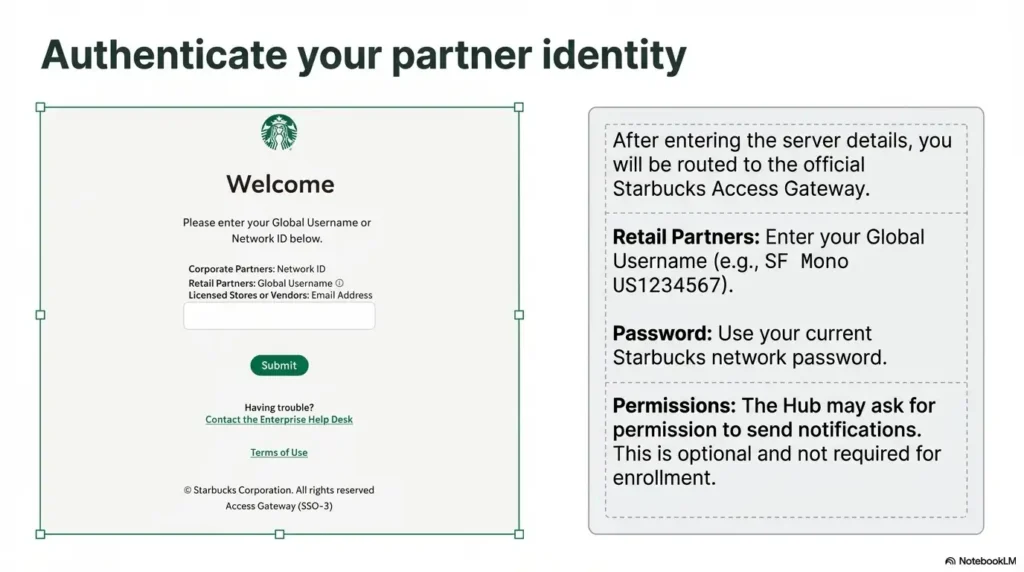
Step 4: Identity Authentication:
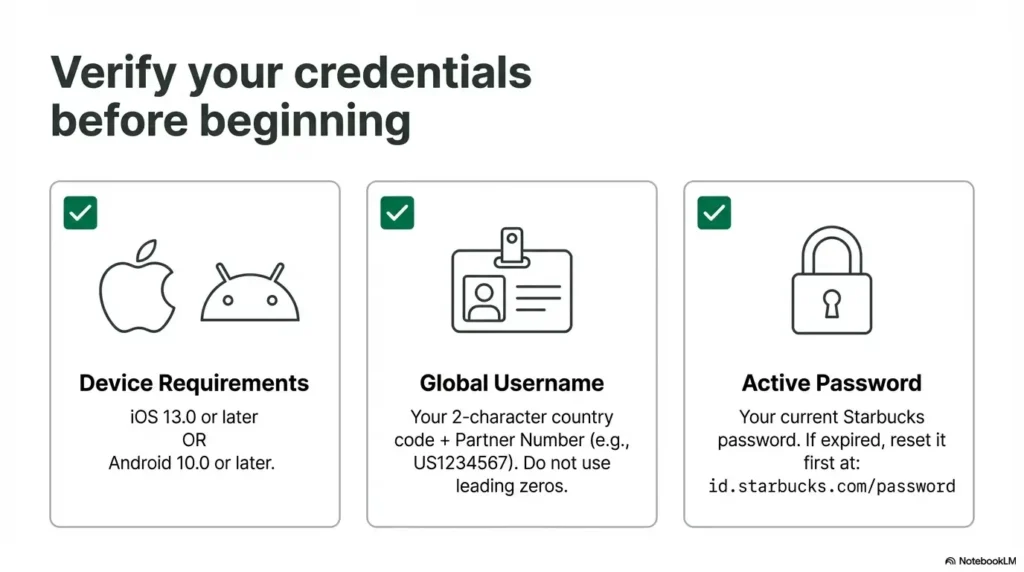
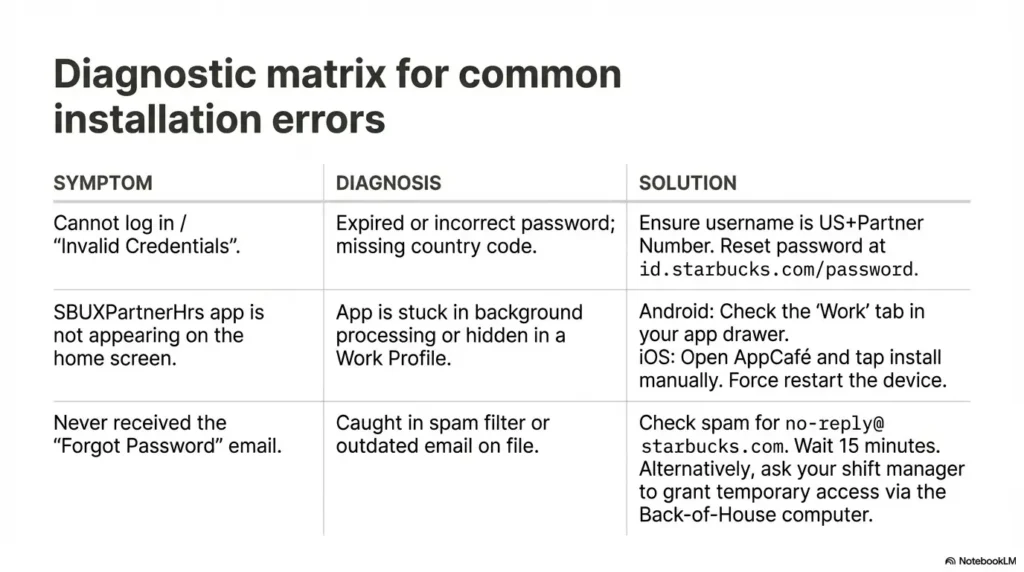
Authenticate your identity by logging in with your Starbucks Global Username (e.g., US1234567) and your global password.
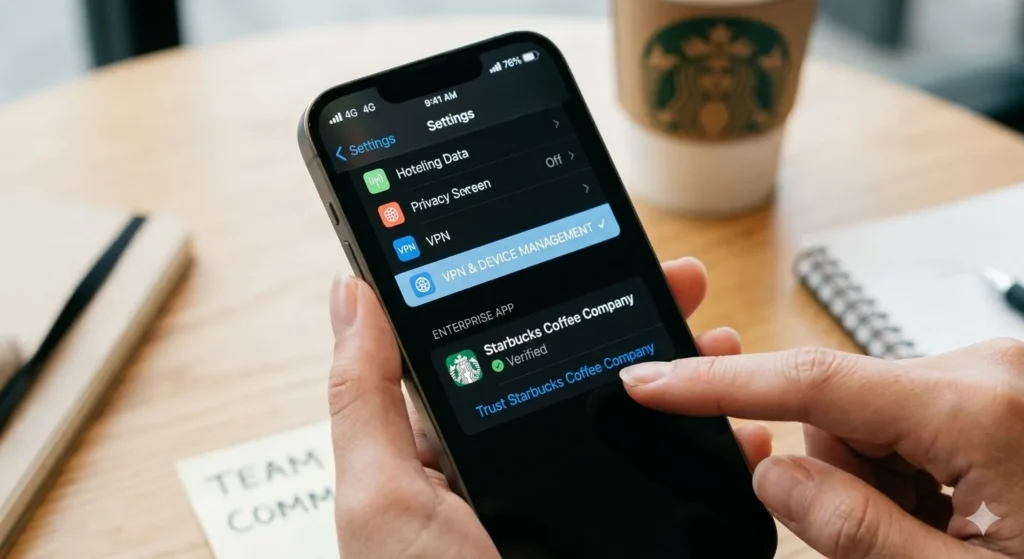
Step 5: Enroll Your Device & Install Profile:
Accept the privacy terms to begin enrollment. This process creates a secure, isolated partition on your phone that separates your personal data from Starbucks corporate data.
iOS Users: After accepting terms, you must exit the app and go to Settings > Profile Downloaded > Install. You may also need to go to Settings > General > VPN & Device Management to “Trust” the Starbucks profile.
Android Users: Follow the prompts to set up a “Work Profile.” This will create a separate area on your phone specifically for work apps.
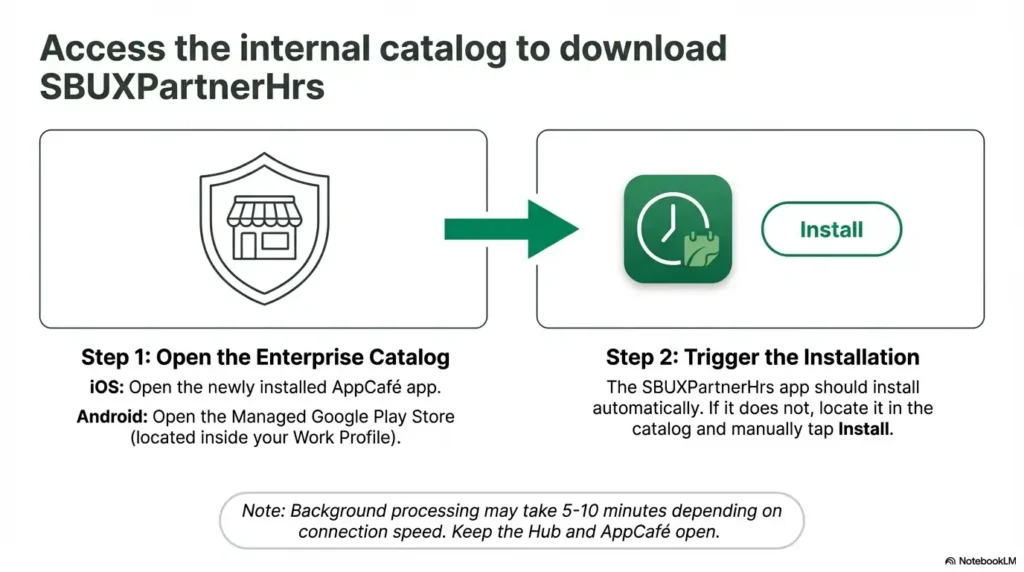
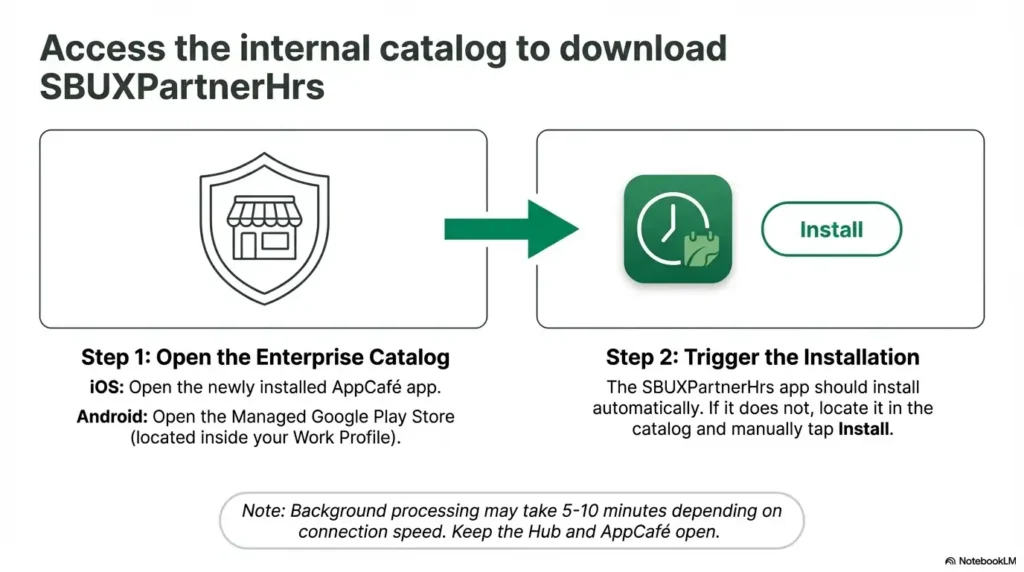
Step 6: Access the Internal App Catalog:
Once enrolled, you will not find the schedule app in the public store. Instead:
iOS: Open the AppCafé app that appeared during enrollment.
Android: Open the Play Store icon that has a small “briefcase” or “work” badge on it.
Step 7: Install the SBUXPartnerHrs App:
Search for and select the SBUXPartnerHrs app. Click install. This is the final stage of how to get the Starbucks Partner Hours app on your personal device.
Step 8: Final Login and Dashboard Access:
Open the newly installed SBUXPartnerHrs app and log in one final time with your partner credentials. You will now have full access to your schedule dashboard, shift swap tools, and availability settings.
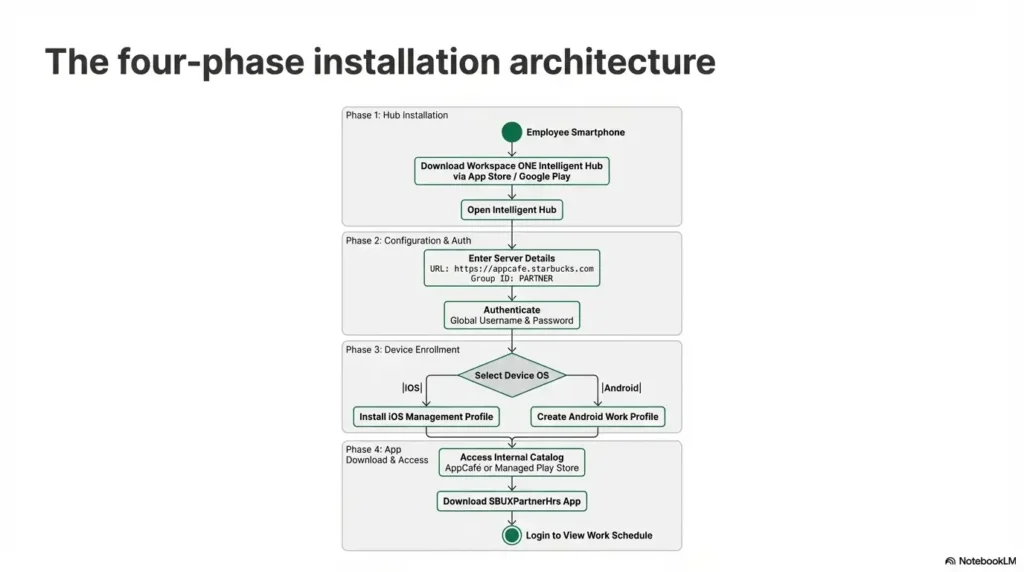
Enrollment Flow Diagram:
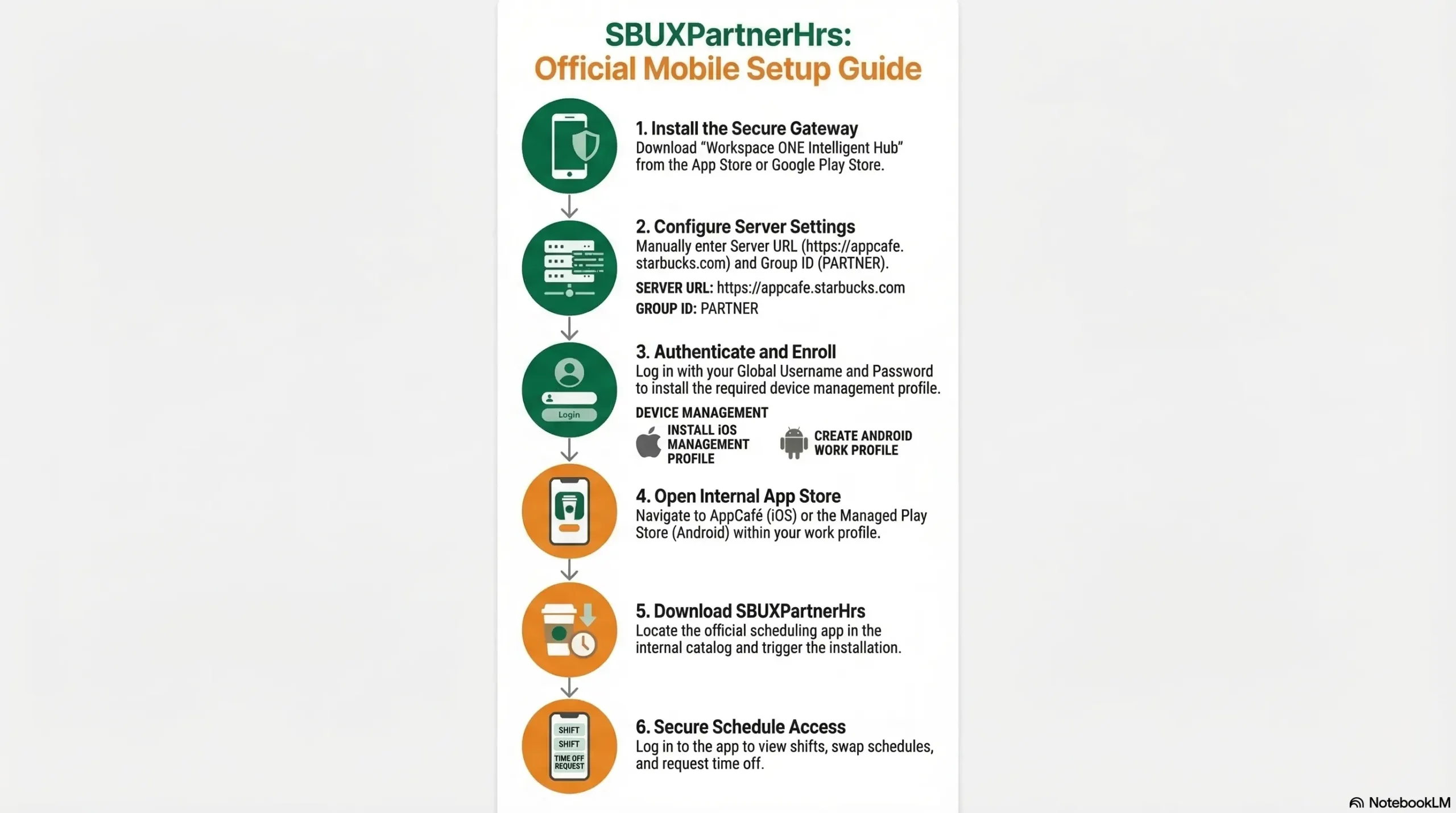
Diagram Description
The installation of the Starbucks Partner Hours app follows a secure Mobile Device Management (MDM) deployment process because it is a private enterprise application not available to the general public. Partners must first install the Workspace ONE Intelligent Hub to act as a secure gateway.
By connecting to the specific Starbucks server URL and using the PARTNER Group ID, the device is verified. The most critical step is the device enrollment (Step 5), which requires iOS users to manually “Install” and “Trust” the downloaded profile in their system settings.
Once the secure work partition is created, the partner can access AppCafé or the managed Play Store to download the actual scheduling tool. This ensures that all schedule and payroll data remains encrypted and secure.