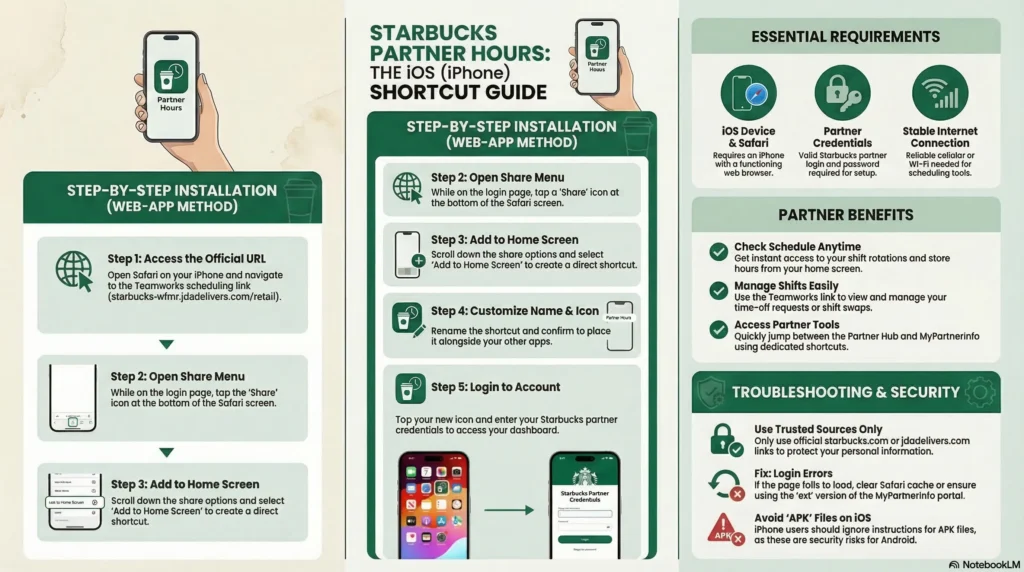
iPhone Installation Guide (2026).
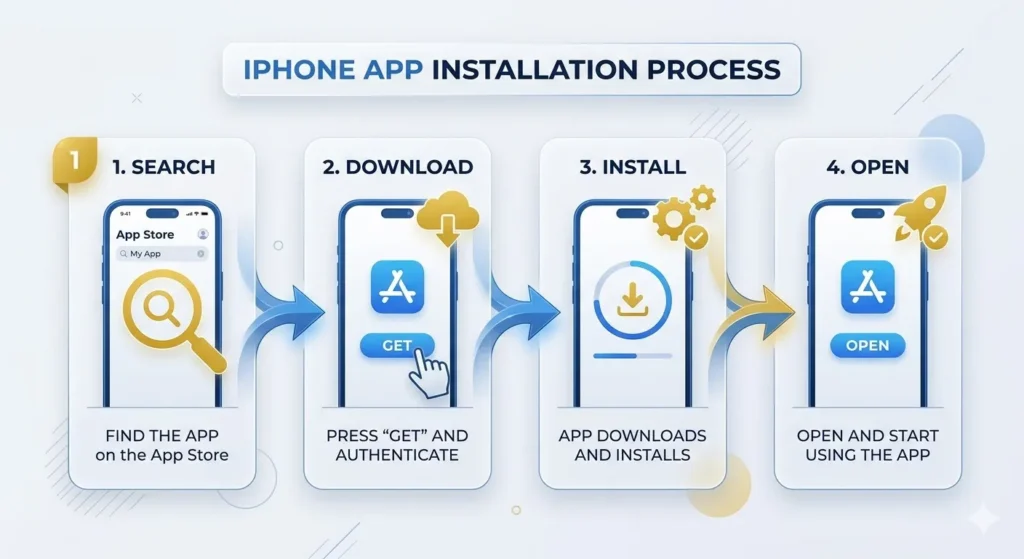
Step 1: Download the Workspace ONE Intelligent Hub.
Step 1: Download the Workspace ONE Intelligent Hub.
- Step explanation: Open the Apple App Store on your iPhone and search for “Workspace ONE Intelligent Hub.” Download and install the application.
- Why the step matters: This hub acts as the mandatory gateway for all Starbucks-approved internal apps.
- What users should see on screen: A blue and white hexagon-shaped icon in the App Store.
Step 2: Configure Server Settings
- Step explanation: Launch the Hub app. You will be asked for an email or server address. Enter the server URL
https://appcafe.starbucks.comand the Group ID:PARTNER. - Why the step matters: This directs your phone to the specific Starbucks “AppCafé” server where the schedule app is hosted.
- What users should see on screen: Text fields labeled “Server” and “Group ID”.
How do I install the iOS configuration profile correctly?
To correctly install the iOS configuration profile for the Starbucks Partner Hours app, you must manually authorize the device management settings within your iPhone’s system menu. This step is a strict security protocol required by Apple to allow enterprise software to function on your personal device
Follow these steps to complete the installation:
- Initiate Download in the Hub: After you have entered the server details (
https://appcafe.starbucks.com) and Group ID (PARTNER) into the Workspace ONE Intelligent Hub and authenticated with your Global Username and password, the Hub will download the management profile to your phone. - Navigate to Settings: Minimize the Intelligent Hub app and open your iPhone’s native Settings app.
- Locate the Profile: At the very top of the main Settings menu, look for a notification that says “Profile Downloaded” and tap it.
- Install the Profile: Tap Install in the top-right corner. You will be prompted to enter your personal iPhone passcode to proceed.
- Trust Remote Management: A system warning regarding “Remote Management” will appear; you must tap Trust on this pop-up to give the device permission to install the Starbucks-managed apps.
- Finalize Enrollment: Once the profile is successfully installed, return to the Intelligent Hub app to complete your enrollment and begin the background installation of the AppCafé and SBUXPartnerHrs apps.
Critical Tip:
The Partner Hours app icon may appear on your home screen after enrollment, but it will not open or function until this profile is manually “Trusted” in your settings. If you miss the “Profile Downloaded” notification at the top of Settings, you can also find it by navigating to Settings > General > VPN & Device Management.
Step 3: Authenticate Your Identity.
- Step explanation: Log in using your Starbucks Global Username (typically your country code followed by your 8-digit partner number, e.g., US12345678) and your network password.
- Why the step matters: This verifies you are a current active partner authorized to use company tools.
- What users should see on screen: The standard Starbucks single sign-on (SSO) welcome screen.
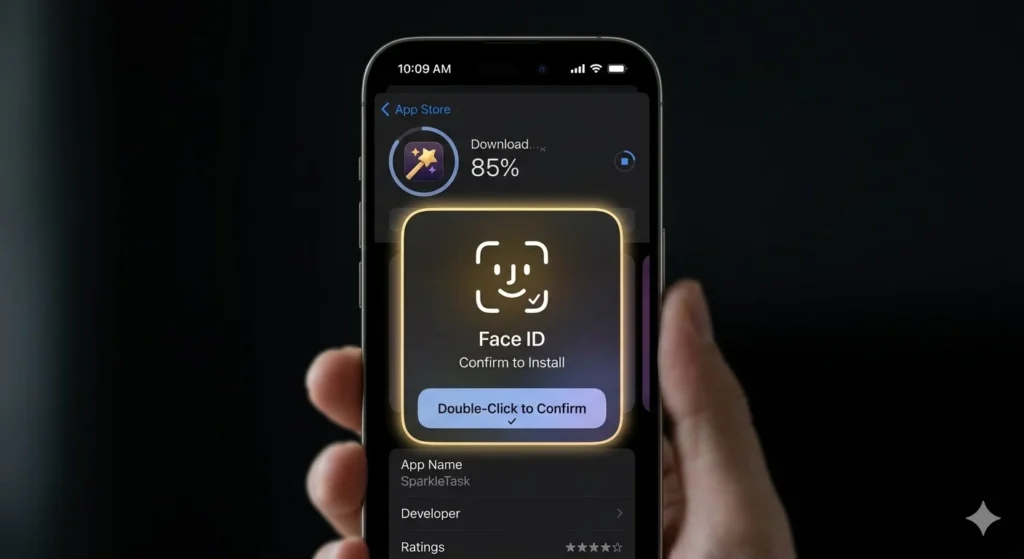
Step 4: Install the iOS Configuration Profile.
- Step explanation: After accepting privacy terms, the Hub will download a management profile. You must minimize the app, go to your iPhone Settings, tap Profile Downloaded at the top, select Install, and tap Trust on the “Remote Management” pop-up.
- Why the step matters: Apple requires manual authorization to allow an organization to manage enterprise software on your device.
- What users should see on screen: A red “Install” button in the top right of your settings and a system warning regarding “Remote Management.”
Step 5: Install AppCafé and SBUXPartnerHrs.
- Step explanation: Return to the Intelligent Hub. It will prompt you to install “AppCafé” and then “SBUXPartnerHrs.” Tap “Allow” or “Install” on each prompt.
- Why the step matters: AppCafé is the internal app store for Starbucks that finally pushes the schedule app to your home screen.
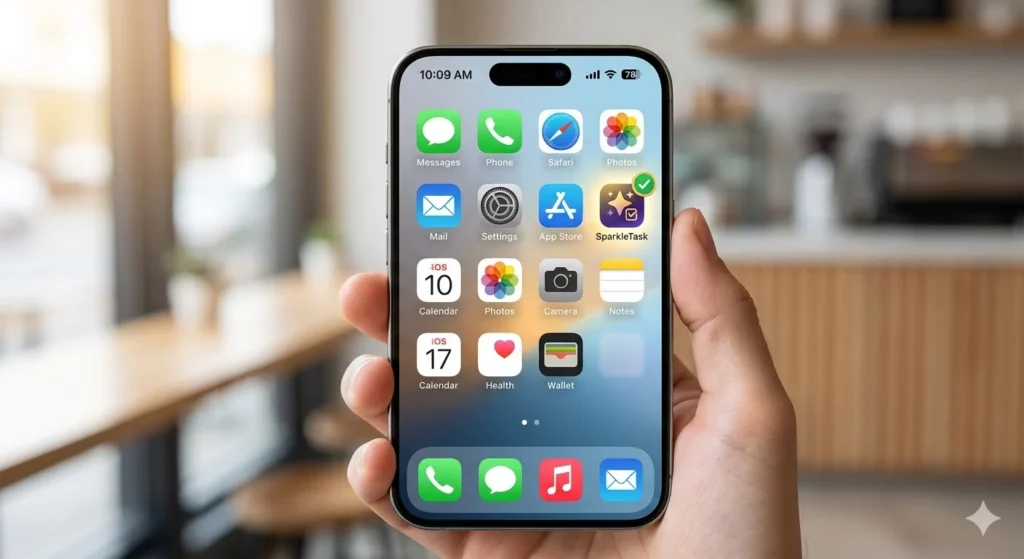
- What users should see on screen: Pop-up notifications will asking to install the apps; eventually, the SBUXPartnerHrs icon with a green coffee cup will appear on your home screen
Login Process After Installation
- Locate the SBUXPartnerHrs app on your device (look for the green coffee cup icon)
- Open the app and enter your Global Username (e.g., US12345678) and password
- First-time users may need to register an account with their partner number, personal email, and a PIN provided by their manager.
- Accept the “Terms of Use” to reach your dashboard
- Note: Managers can switch between “Partner” and “Store Manager” personas via the More > Change menu
What the Starbucks Partner Hours App Is.
Purpose of the App The Starbucks Partner Hours app is the primary digital interface between a partner and the company’s workforce management system (Blue Yonder WFMR). It is designed to modernize the retail experience by removing the reliance on paper schedules and manual shift tracking.
Who Can Use It The app is built exclusively for active Starbucks partners, including baristas, shift supervisors, and managers. It is not available to customers or former employees
What Partners Can Do Inside the App.
- Real-Time Schedule Viewing: Access your current week and future schedules (posted up to 14 days in advance) at any time.
- Shift Marketplace: Post your shifts for coverage or browse and claim open shifts from coworkers.
- Time-Off Requests: Digitally submit requests for vacation or sick time and track their approval status.
- Availability Management: Update your preferred working hours so managers can build schedules that fit your lifestyle.
- Clocking In/Out: Use a secure QR code on your phone to scan into your shift at the store, minimizing timekeeping errors.
- Accessing Pay Stubs: View digital pay information, including accumulated hours and tax deductions.
Requirements Before Installing the App.
To ensure a smooth installation and avoid “invalid role” or authentication errors, verify you meet these prerequisites:
- Partner Credentials: You must have an active 8-digit partner number and a Global Username (Network ID)
- Password Readiness: You must have established a password via Partner Central or the self-service portal at
id.starbucks.com/password. - Device Eligibility: Your smartphone must meet minimum OS requirements: iOS 13.0 or later for iPhones and Android 10.0 or later for Android devices.
- Intelligent Hub Enrollment: Enrollment in Workspace ONE Intelligent Hub is mandatory for accessing the SBUXPartnerHrs app.
- Network Stability: A stable internet connection is required. It is highly recommended to use cellular data instead of the in-store Starbucks Wi-Fi during the initial installation, as store Wi-Fi can be less secure and cause connection failures.
- Security Permissions: You must grant the Hub app permission to access your camera (for QR scanning) and to install a management profile (iOS) or Work Profile (Android)
Common Errors While Downloading or Installing the App.
Enterprise-grade software can sometimes encounter technical hurdles during setup. Common partner-reported issues include:
- App Not Found in Store: Searching for “Partner Hours” in the public store only yields the consumer app, not the employee version.
- QR Code Failures: The Hub may refuse to scan a physical QR code if camera permissions were denied or the code is outdated.
- “System Error” Messages: A generic error often caused by a poor network connection or a global outage of the Blue Yonder servers.
- Login Loops / “Invalid Role”: The app asks for a login repeatedly or claims you do not have the right permissions.
- iOS Profile Not Trusted: On iPhones, the Hub will enroll but the schedule app won’t appear because the Remote Management profile wasn’t manually trusted in Settings.
- Missing Schedules: You log in successfully, but the calendar is blank.
- Background App Closures: The installation stops because the Hub or AppCafé was swiped away during the 5-minute background install process.
How to Fix Each Error (Step-by-Step Solutions)
If you encounter the errors above, use these verified fixes:
Fix “System Error” and Connectivity Issues
- Check Server Status: Use a site like DownDetector to see if Starbucks app servers are currently down for everyone.
- Toggle Networks: Swipe down to switch from Wi-Fi to mobile data (or vice versa).
- Disable VPNs: Starbucks security often blocks VPN connections as “suspicious,” which can trigger system errors.
- Restart Device: Powering your phone off and on can refresh the network handshake needed for enrollment.
Fix Login Failures
- Verify Username Format: Double-check your Global Username. It is your 8-digit partner number. If it fails, try adding your country code (e.g., US). Ensure there are no extra spaces.
- Reset Password: If your password has expired or is incorrect, visit
id.starbucks.com/passwordto reset it. Note: Reset emails can take 15–30 minutes to arrive; check your spam/junk folders forno-reply@starbucks.com. - Update Hub App: Ensure Workspace ONE Intelligent Hub is updated to the latest version in the public App Store/Play Store.
Fix Blank Schedules
- Manager Verification: If you are logged in but see no shifts, your store assignment may not be linked correctly in the database. Ask your Store Manager to verify your assignment in the system; it usually resolves within 24–48 hours
Fix App Disappearance or Installation Stalls
- Keep Apps Open: When AppCafé is installing SBUXPartnerHrs, do not close or “delete” the open tabs for the Hub or AppCafé. They must stay active in the background until the installation is 100% complete.
- Manual Install in AppCafé: If the app doesn’t auto-install, open the Hub, go to the internal AppCafé (iOS) or Managed Play Store (Android), and tap “Install” manually next to the Partner Hours listing.
- Trust the Profile (iOS): If the app icon appears but won’t open, go to Settings > General > VPN & Device Management and ensure the Starbucks profile is marked as “Trusted”.
Fix “Invalid Role” Error
- Request Center: If your account is active but the app denies access, you may need to request app access through the Request Center on the Partner Hub
Escalating to Support
Technical/IT Issues: If none of these fixes work, call the Enterprise Help Desk (EHD) at (888) SBUX-411. They are available 24/7 to resolve technical enrollment and password problems
Human Resources: Do not call the Partner Contact Center (PCC) for app login issues; they strictly handle payroll and benefits.
Alternative Ways to Access Starbucks Partner Hours
If your mobile device is unavailable or you prefer not to install enterprise software on your personal phone, you can use these official alternatives:
The Official Web Portal
URL: https://starbucks-wfmr.jdadelivers.com/retail/portal
- How to use: Navigate to this address in any modern browser (Chrome, Safari, etc.) and log in with your Global Username and password
- Benefits: Provides full functionality for viewing schedules and requesting time off without requiring any app downloads. You can bookmark this on your phone’s home screen for easy access
Store Back-of-House (BOH) Computers
- Every store has BOH computers where partners can log into the Partner Hub to view their schedules during work hours
Security Tips and Safety Warnings
Managing your professional schedule on a personal device requires vigilance:
- Avoid Fake Apps: Never download an app that claims to be “Starbucks Partner Hours” directly from a third-party website or public store results. Fake apps are used for data theft. Only use the Hub-enrollment method.
- Work Profile Privacy: Partners often worry about privacy when using MDM apps. The Intelligent Hub’s Work Profile/Container ensures that Starbucks cannot see your personal photos, text messages, calls, or private apps. It only manages the work apps within that partition.
- Protect Your Login: Your partner credentials grant access to your pay stubs and benefits. Never share your password with coworkers or save it on public/shared devices.
- Don’t Uninstall the Hub: Once SBUXPartnerHrs is installed, do not delete the Intelligent Hub or AppCafé apps. They are required to keep your schedule app connected and updated with Starbucks servers.
Frequently Asked Questions
Is the Starbucks Partner Hours app available worldwide?
Availability varies by region. While used across North America, partners in other countries should check with their manager or local Partner Hub for region-specific tools.
Why can’t I find the app in the app store?
It is a private enterprise app. To protect corporate security, it is hidden from public view and must be installed via the Intelligent Hub enrollment process.
Do I need the Intelligent Hub app?
Yes. It is a mandatory prerequisite for secure enterprise app delivery at Starbucks.
Can I access Partner Hours without the app?
Yes. Use the web portal at https://starbucks-wfmr.jdadelivers.com/retail/portal from any desktop or mobile browser.
Why does the app require device permissions?
It requires camera access for the initial QR enrollment scan and notification permissions to alert you of shift changes or time-off approvals.
What happens if I get a new phone?
You must repeat the enrollment process on your new device starting with the Workspace ONE Intelligent Hub download.