Starbucks Partner Hours App Not Working – Complete Troubleshooting Guide.
For a Starbucks partner, the Starbucks Partner Hours app not working page is the primary gateway to managing professional life, facilitating everything from checking next week’s shifts to swapping coverage during an emergency. However, few things are as frustrating as standing in the backroom or sitting at home trying to check your schedule only to be met with an infinite loading screen, a “System Error,” or a login loop.
These technical roadblocks often occur because the starbucks partner hours app is not a standard consumer application; it is a private enterprise tool that requires a secure “handshake” with Starbucks’ internal servers. Based on common user reports, issues usually stem from credential errors, Mobile Device Management (MDM) enrollment glitches, or network restrictions. This guide provides a definitive, expert-level breakdown of how to fix these errors and get your schedule back in your pocket.
What is the Starbucks Partner Hours App?
The Starbucks Partner Hours app, officially known as SBUXPartnerHrs, is a private enterprise mobile tool designed exclusively for employees (partners). It is powered by Blue Yonder WFMR technology on the backend and is used to view real-time work schedules, submit time-off requests, and utilize the Shift Marketplace, which supports over 30,000 trades weekly.
Because the app handles sensitive corporate data, payroll information, and personal shift details, it is not listed in standard public app stores for direct download. Instead, partners must enroll their personal devices in the Workspace ONE Intelligent Hub, which creates a secure partition on the phone to isolate work data from personal files.
Common Reasons Why the App is Not Working.
Before diving into specific fixes, it is helpful to understand why the Starbucks Partner Hours app not working is such a common complaint. In many cases, the issue is one of the following:
- Server Outages: The Blue Yonder or Starbucks AppCafé servers may be down for maintenance.
- Authentication Errors: Using an expired password or the incorrect Global Username format.
- MDM Enrollment Failures: The “handshake” between your phone and the Workspace ONE Intelligent Hub has been broken.
- Work Profile Conflicts (Android): The app is installed but hidden inside a “Work” version of the Play Store that hasn’t been accessed.
- Version Mismatch: Using an outdated version of the Hub or the SBUXPartnerHrs app itself.
- Network Restrictions: Attempting to log in while using a personal VPN or a restrictive public Wi-Fi network.
Step-by-Step Troubleshooting Guide.
If you are currently experiencing Starbucks Partner Hours app login issues, follow these steps in order to isolate and resolve the problem.
Fix the “Bookmark Loop” and Login Errors.
A reliable fix for the common “bookmark loop”—where a saved link refuses to log you in—is to stop using saved browser bookmarks entirely.
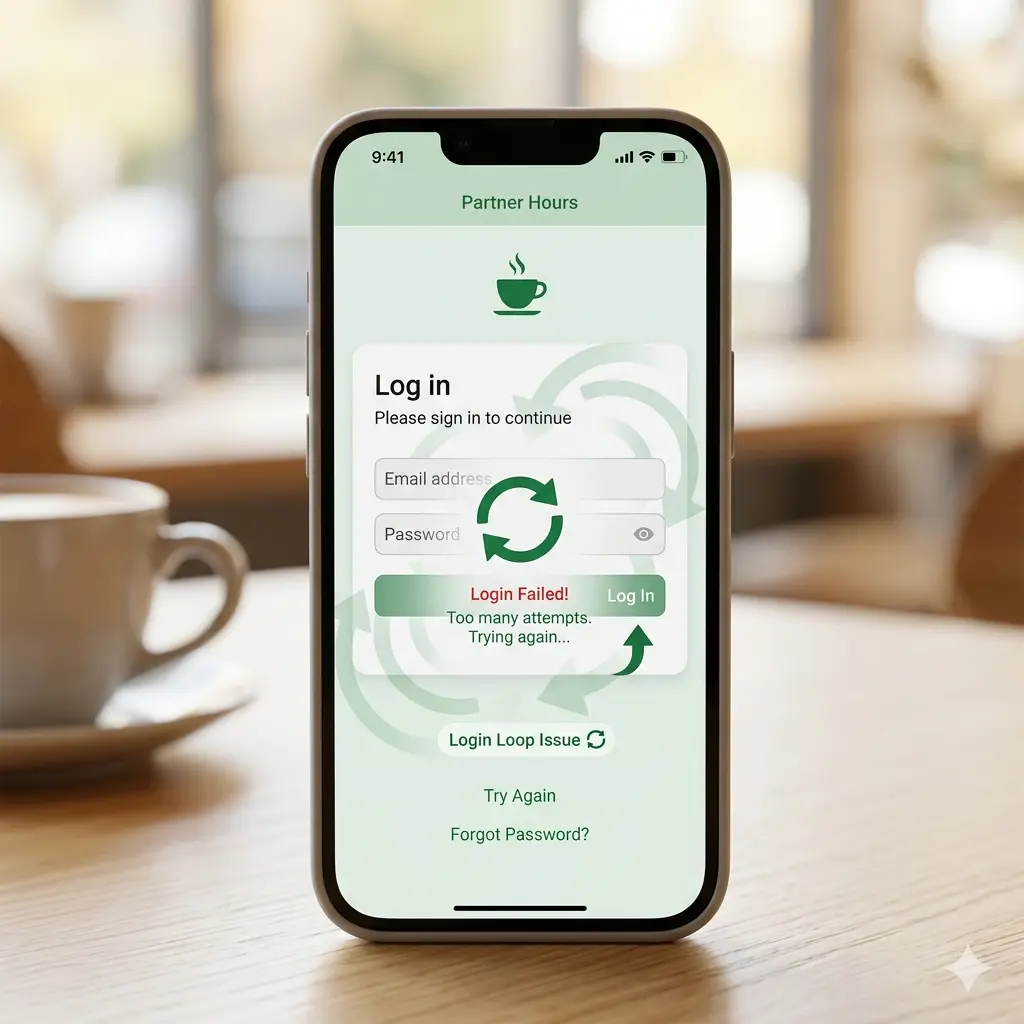
- The Problem: Browser bookmarks often save a “session token” that expires quickly. When you click the old link, the server sees an invalid token and denies access [Expert Insight].
- The Fix: Manually type
partner.starbucks.comorhttps://starbucks-wfmr.jdadelivers.com/retail/portalinto a fresh browser tab. - Verify Credentials: Ensure your Global Username is your 8-digit partner number with no leading zeros or “US” prefixes if logging into the app directly.
Clear Cache and Cookies (Android Only).
If the app crashes or freezes, corrupted temporary files in the app registry are likely to blame.
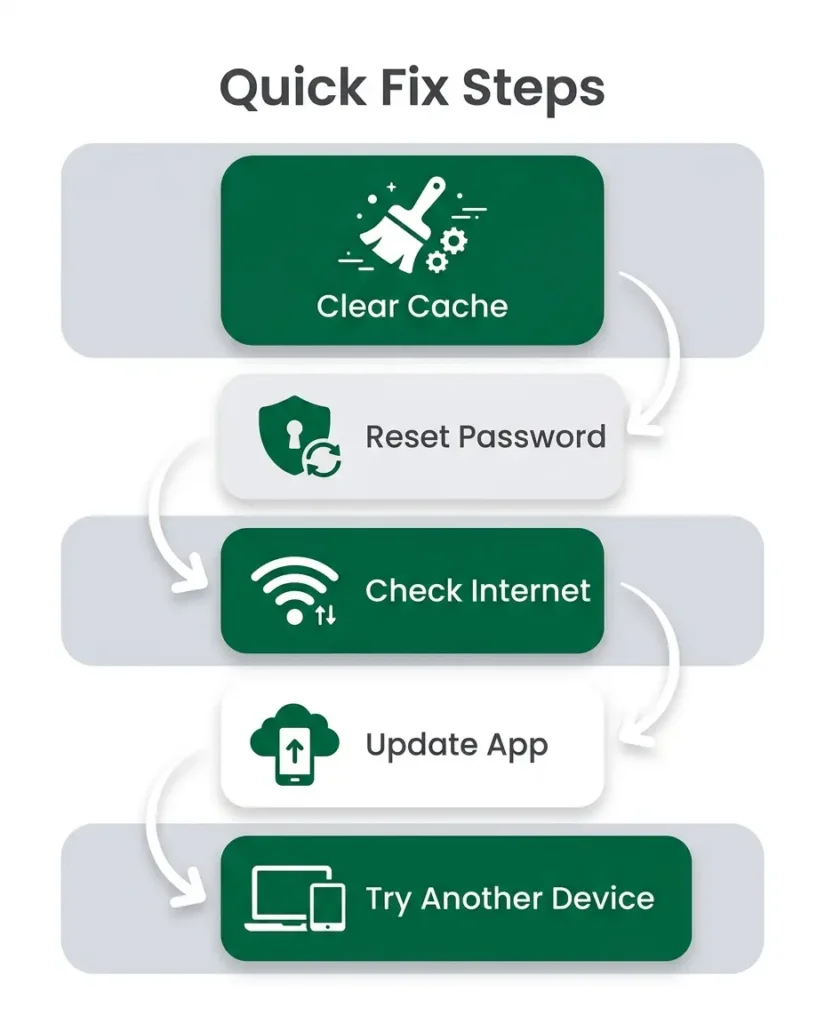
- Open your device Settings.
- Navigate to Apps or App Management.
- Locate SBUXPartnerHrs (or Intelligent Hub if the enrollment is failing).
- Select Storage, then tap Clear Cache.
- If the problem persists, select Clear Data, which will force a fresh login.
Fix “New Phone” and Re-enrollment Issues.
When you upgrade your device, the security certificates from your old phone do not always transfer correctly, leading to enrollment failures.
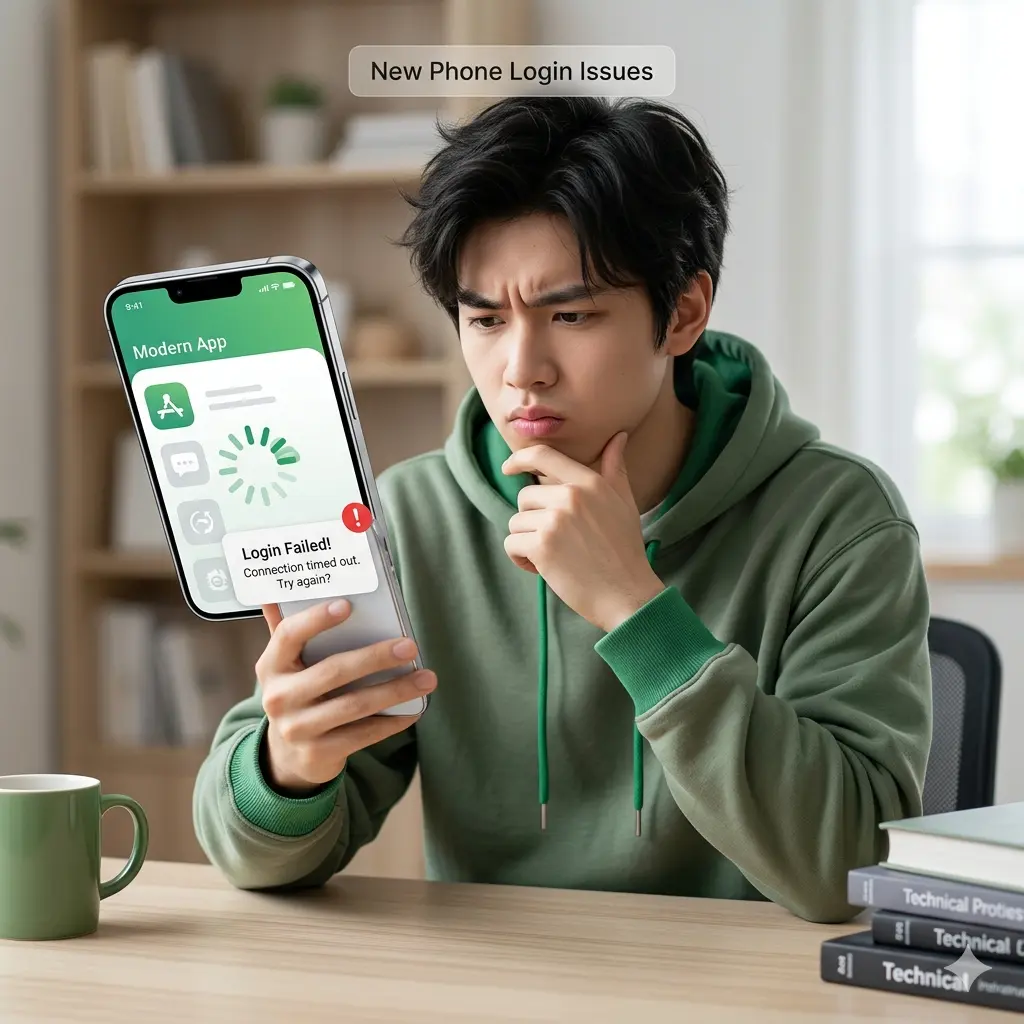
- A Reliable Fix is to Reinstall Everything: Delete the SBUXPartnerHrs app and the Workspace ONE Intelligent Hub.
- Clean the Settings: On iPhone, go to Settings > General > VPN & Device Management and remove any old Starbucks profiles.
- Redownload: Reinstall Intelligent Hub from the App Store or Play Store and rescan the official QR code from the “Mobile App Quick Reference” guide on the Partner Hub.
Solve the Android Work Profile Error.
Android users often find that after installing the Hub, the schedule app is nowhere to be found.
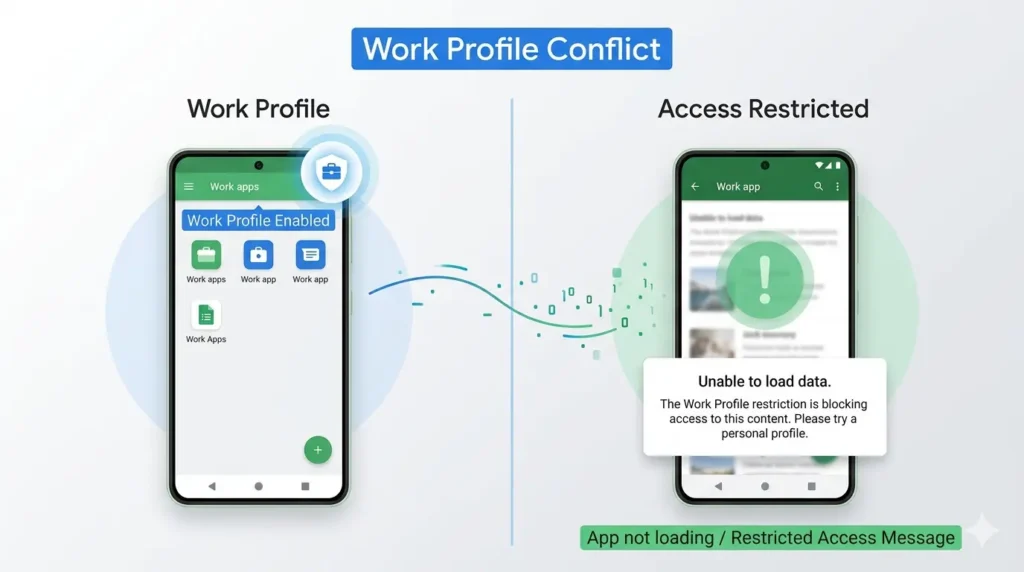
- Switch to Work Account: Open the Google Play Store, tap your profile icon, and select the “Work Account” (briefcase icon).
- Manual Trigger: Inside the managed Play Store, search for SBUXPartnerHrs and tap install manually if it didn’t auto-deploy.
Proper Password Reset.
If you are receiving an “invalid role” or authentication error, your password may have expired
- Reset Portal: Do not use the main Starbucks customer site. Go to
id.starbucks.com/passwordorcloudid.starbucks.com. - Be Patient: The reset email can take up to 15–30 minutes to arrive. If it doesn’t appear, verify your registered email address on a store computer.
Device-Specific Fixes.
Android (Permissions & Work Profile)
Android devices (version 10.0+) require the creation of a “Work Profile” partition.
Permissions: During installation, you must grant the Hub app permission to “Manage Calls” and “Access Location.” While these seem invasive, they are standard MDM requirements to verify the device’s security status.
App Drawer: Look for a tab at the bottom of your app drawer labeled “Work.” Your schedule app lives here, not in your personal app list.
iPhone/iOS (Trusting the Profile).
Apple devices (iOS 13.0+) have a strict security gate that partners often miss.
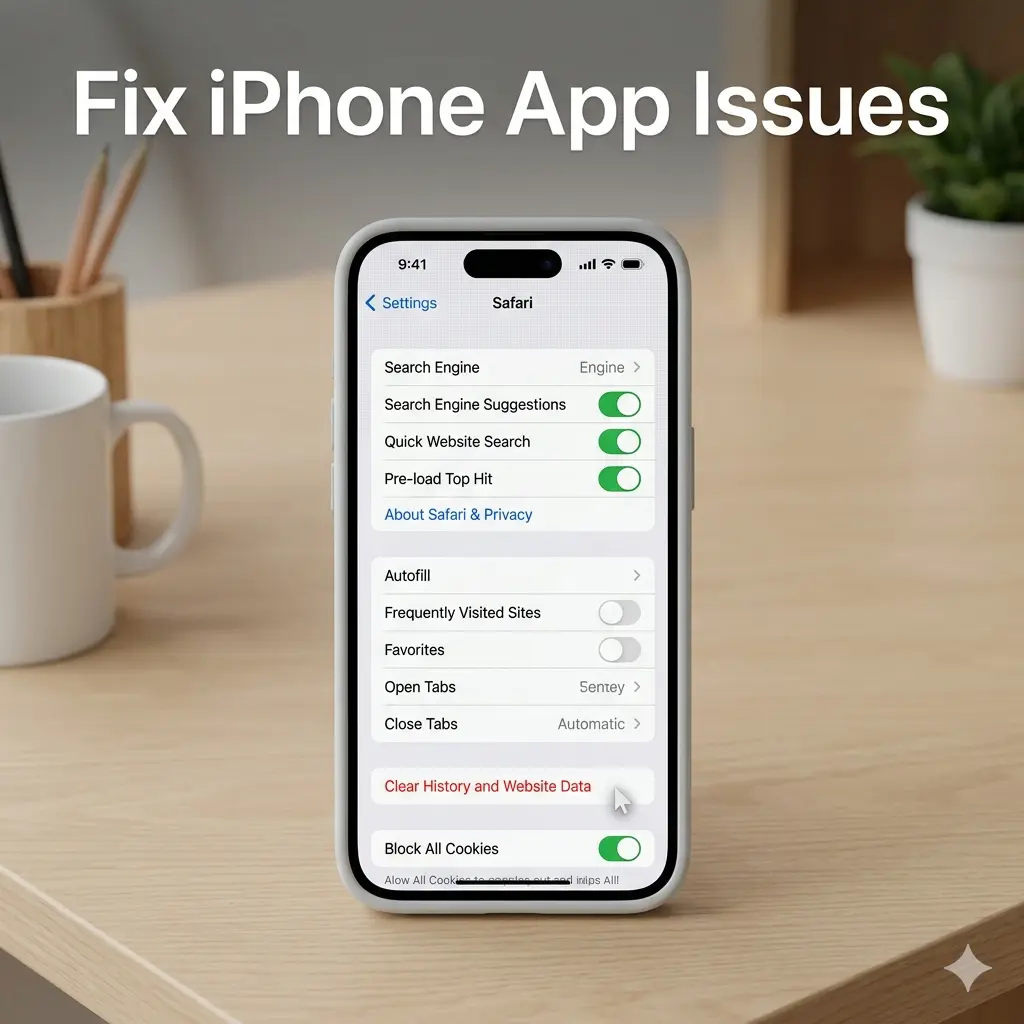
- Trust the Profile: After downloading the profile via the Hub, you must manually go to Settings > Profile Downloaded > Install. Then, tap Trust on the “Remote Management” pop-up. The app will not open until this step is completed.
Desktop/Web Browser.
If you are working from a computer or tablet, the web portal is often more stable than the mobile app.
Supported Browsers: Use Google Chrome or Safari. Ensure that you have cleared your browser cookies if you are stuck in a redirect loop.
URL: Use https://starbucks-wfmr.jdadelivers.com/retail/portal
DNS and Network Troubleshooting
If the app says “Connection Refused” while you are on your home Wi-Fi, your router might be blocking the enterprise server handshake.
- Toggle to Cellular: Turn off Wi-Fi and attempt to log in using mobile data.
- Disable VPNs: Starbucks’ corporate security systems often flag and block encrypted VPN tunnels as “suspicious activity,” which can trigger a “System Error”.
Corporate Login Restrictions.
If you receive an “Invalid Role” error, it typically means your account is active but has not been granted “Mobile Access” permissions in the central database.
The Fix: Log into the Partner Hub on a store Back of House (BoH) computer. Navigate to the Request Center and ensure you have requested access to the mobile scheduling tools.
When the Problem is NOT on Your Side.
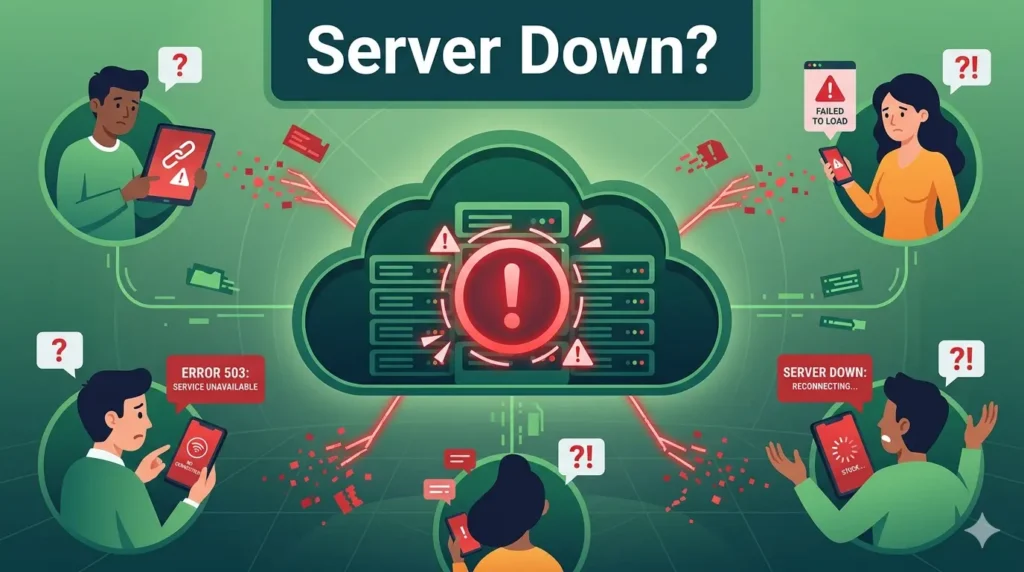
Sometimes, no amount of troubleshooting will fix the issue because the Starbucks servers are experiencing an outage.
- How to Check: Use a third-party site like DownDetector to see if other partners are reporting issues.
- Check Reddit: The
r/starbuckscommunity is a primary source for real-time outage reports. - What to Do: If the servers are down, you must rely on the physical schedule in your store’s backroom or contact your manager directly to verify your shifts.
Practical Tips & Prevention.
- Don’t Delete the Hub: Once SBUXPartnerHrs is installed, do not uninstall the Workspace ONE Intelligent Hub or the AppCafé app. These are required to keep the schedule app connected and updated.
- Update Regularly: Set your phone to auto-update apps. Outdated versions of the Hub are a leading cause of authentication failures.
- Use the QR Code: When setting up a new device, always use the official QR code from the Partner Hub rather than typing server details manually to avoid typos.
- Know Who to Call: For technical login and enrollment issues, call the Enterprise Help Desk (EHD) at 888-SBUX-411. Do not call the Partner Contact Center (PCC); they only handle HR and benefits matters.