Starbucks Partner Hours QR Code Android Setup:
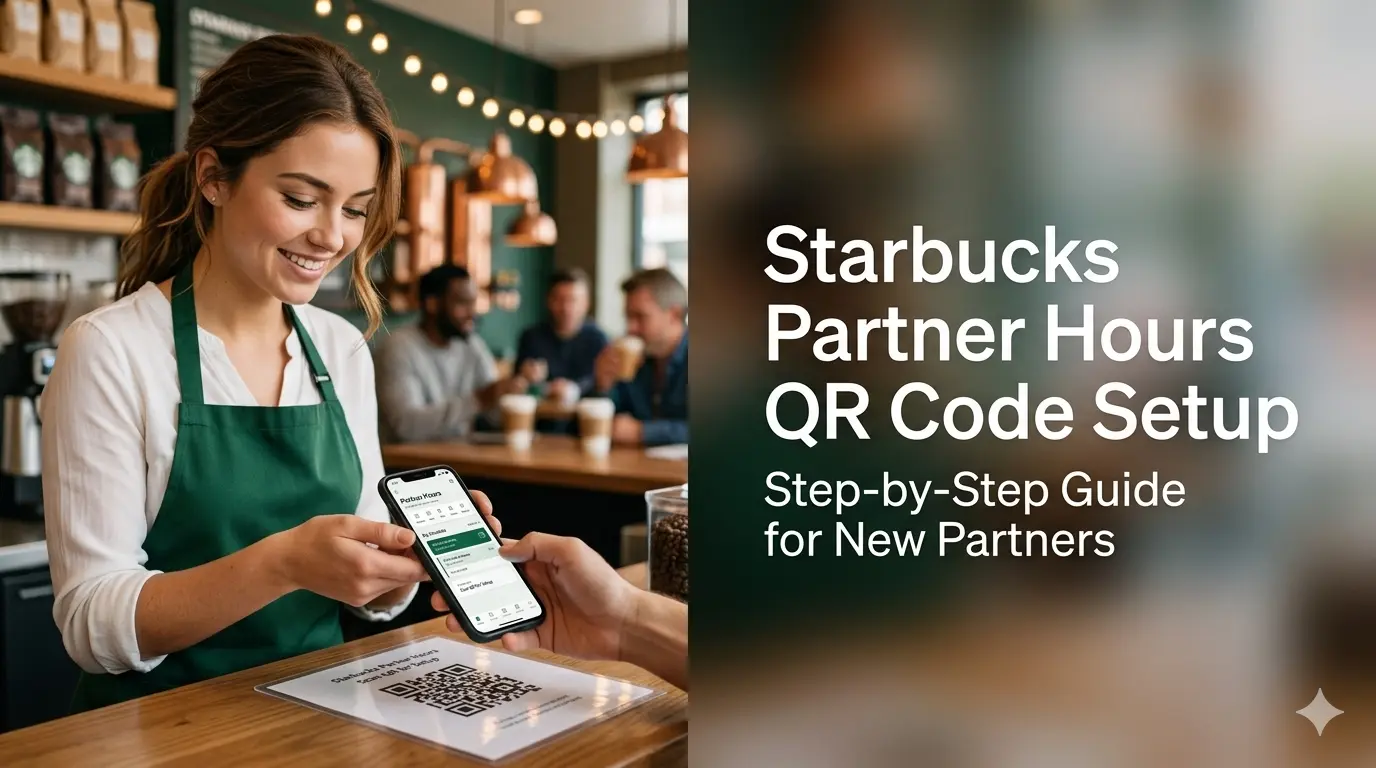
Welcome to the team! If you are a new Starbucks partner, you likely have that “first-day” feeling—a mix of excitement and the slight overwhelm of learning the “Siren’s” playbook. One of the very first hurdles you will face is moving beyond the paper schedule in the backroom to the digital freedom of the Starbucks Partner Hours QR code android setup.
This isn’t just about knowing when to show up for your shift; it’s about accessing your pay statements, tracking your PTO, and joining a digital marketplace where you can swap shifts with ease. As a senior partner who has seen the evolution of our scheduling tools, I am here to walk you through exactly how to get this app running on your phone so you can focus on what matters most: that perfect pour and our incredible community.
What is Starbucks Partner Hours QR Code Android Setup?
In simple terms, the Starbucks Partner Hours QR code is your gateway to a private, enterprise-level application that manages the work lives of over 361,000 partners globally. Unlike the standard Starbucks app you use to buy coffee, this “work version” is powered by Blue Yonder technology and is designed to handle scheduling, time-off requests, and availability updates in real-time.
Because this is a private enterprise app containing sensitive data like your pay stubs and work history, you cannot find it by simply searching “Starbucks Partner” in a public app store. Instead, Starbucks uses a secure enrollment process that requires an official QR code found on a “Quick Reference Guide” typically located at your store or provided by your manager. This setup ensures that your personal information and the store’s data remain protected behind a secure digital wall.
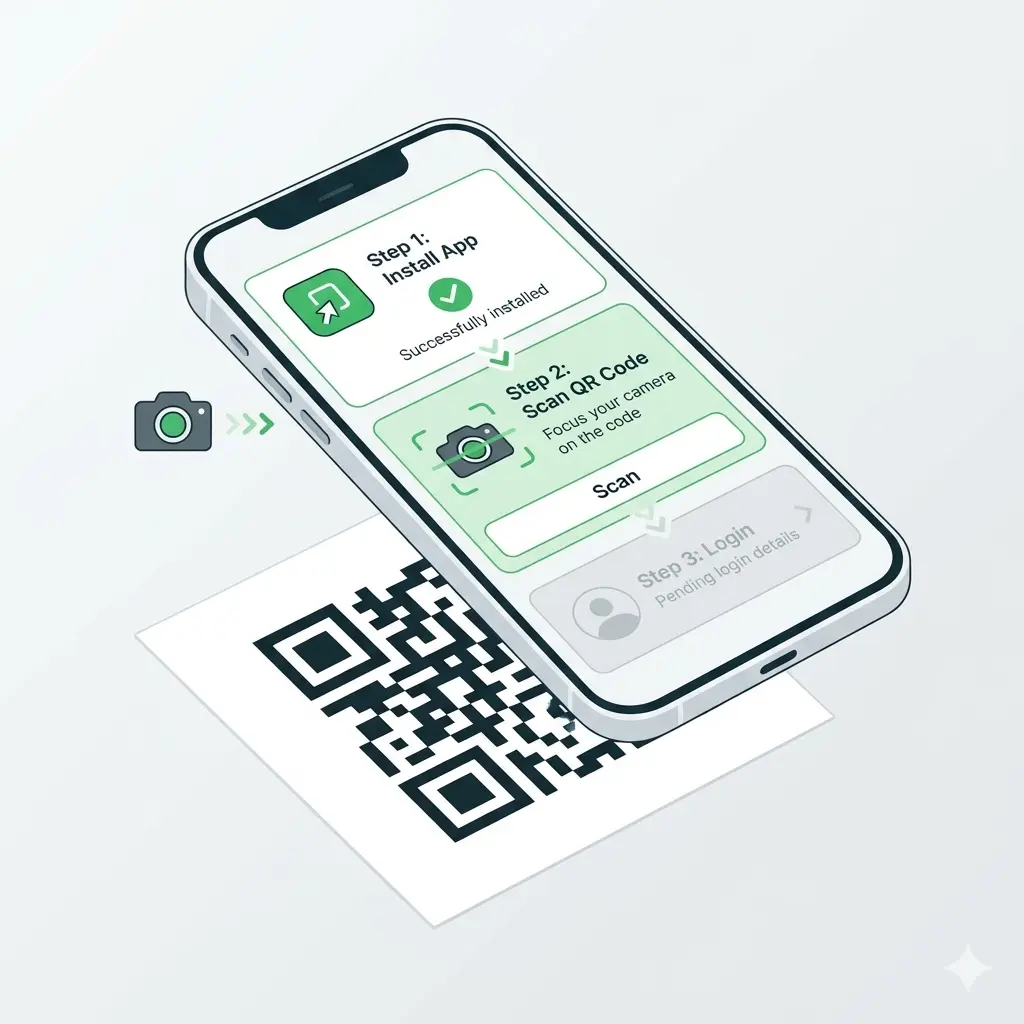
Step-by-Step Starbucks Partner Hours QR Code Setup (Complete Walkthrough).
Setting up the app requires a few specific steps to ensure your device is properly authenticated. You should follow these steps carefully to avoid the common “Invalid Role” or “Session Expired” errors that frustrate new hires.
Request the Official QR Code.
The very first step is to ask your Store Manager (SM) for the official QR code. Every store has a reference guide—one for Apple iOS and one for Google Android—that contains the specific code needed to initiate the download. Do not attempt to use a generic QR code from the internet, as it may not link correctly to our Starbucks-specific servers.
Install Workspace ONE Intelligent Hub.
Before the scheduling app can live on your phone, you must install the Workspace ONE Intelligent Hub (sometimes just called “Intelligent Hub”).
- For iOS: Download the Hub from the Apple App Store.
- For Android: Download it from the Google Play Store. Once installed, open the Hub and select the option to scan a QR code. Use the code provided by your manager to “enroll” your device into the Starbucks secure network.
Authenticate with Your Global Username.
When prompted for your email or username within the Hub, you must enter your Global Username followed by @starbucks.com (for example, US12345678@starbucks.com). After this initial prompt, you will be taken to a formal Starbucks login page where you will enter just your Global Username and your network password.
Create the Work Profile (Android Only).
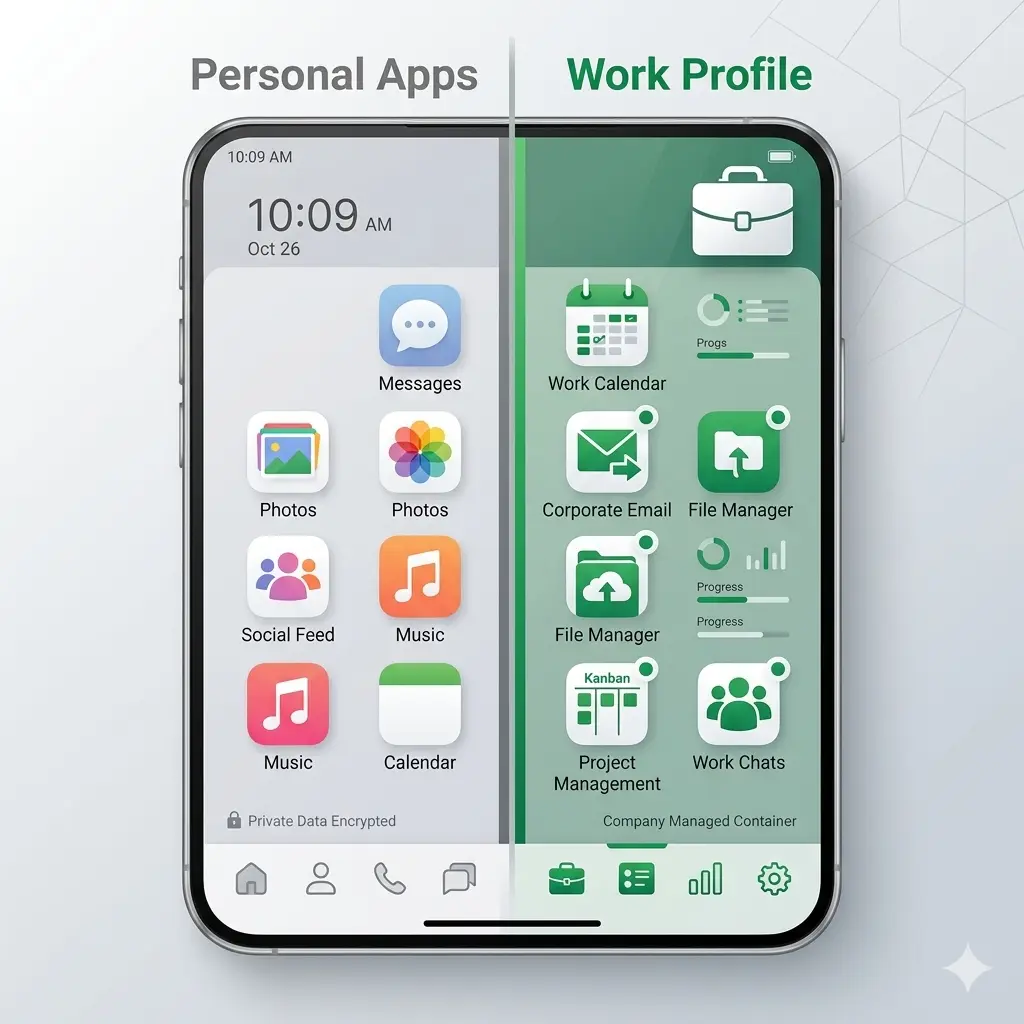
If you are an Android user, the setup will create a dedicated “Work Profile” on your device. This is a separate digital space where work apps live, keeping them isolated from your personal apps and photos. Look for the “briefcase” icon on your app drawer to find your work-ready apps.
Install the SBUXPartnerHrs App.
After enrollment is successful, the actual SBUXPartnerHrs (Starbucks Partner Hours) app should automatically begin to install. If it doesn’t start on its own, you can manually trigger the installation from within the Intelligent Hub. Once the icon appears on your screen, you are ready to log in and see your schedule.
Common Setup Mistakes.
- Searching the App Store Directly: Many partners accidentally install the generic “Blue Yonder” app from the store, which will not work with your Starbucks account.
- Using a Personal Email: You must use your official Starbucks Global ID ending in @starbucks.com for the initial setup.
- Skipping Account Activation: You must activate your account and set a password through Partner Central before the app will allow you to log in.
Features of the Partner Hours App: Your Digital Command Center.
The Starbucks Partner Hours app is far more than a simple calendar. It is designed to give you total control over your work-life balance.
Schedule Viewing & Real-Time Sync.
The app offers a 14-day outlook of your shifts, including your specific break times and total weekly hours. Because the system synchronizes in real-time, any changes made by your manager will update on your phone instantly. This eliminates the “where’s my shift?” panic that used to happen with paper schedules.

The Shift Marketplace.
This is perhaps the most popular feature, allowing partners to post shifts they can’t work or pick up extra hours if they want a bigger paycheck. Approximately 30,000 shifts are picked up by partners through this marketplace every single week. It provides a seamless way to manage your time without having to call around the store or beg for coverage in a group chat.
Time-Off & Availability
Need a day off for a doctor’s appointment or a family event? You can submit time-off requests directly through the app. The system even tracks your remaining PTO and vacation balances, displaying your accrual rates so you know exactly how much “me time” you’ve earned. You can also update your availability settings to ensure the system doesn’t schedule you during your classes or other commitments.
Push Notifications.
Enabling push notifications is a “pro move”. The app will alert you the moment a new schedule is posted, a time-off request is approved, or an urgent shift becomes available for pickup. Roughly 68% of partners prefer using the mobile app specifically for these instant alerts.
Mobile vs. Desktop Partner Hub.
While the mobile app is perfect for quick checks and shift swaps, the Partner Hub (accessible via desktop at starbucks-wfmr.jdadelivers.com/retail/portal) is your “deep-dive” resource. Use the desktop version for detailed payroll tracking, managing tax forms, and exploring your full suite of insurance and education benefits.
Understanding the Starbucks Partner Rules.
To be a successful partner, you need to understand how our scheduling and service goals work together to create a great experience for everyone.