
Starbucks Partner Hours Android Installation
Android Installation
How to Install the Starbucks Partner Hours. (Android)
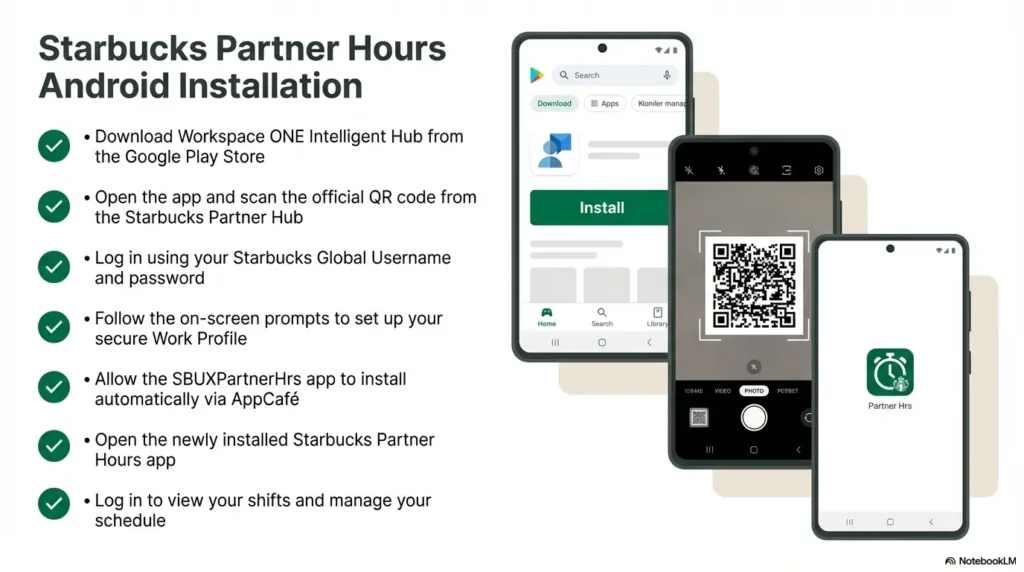
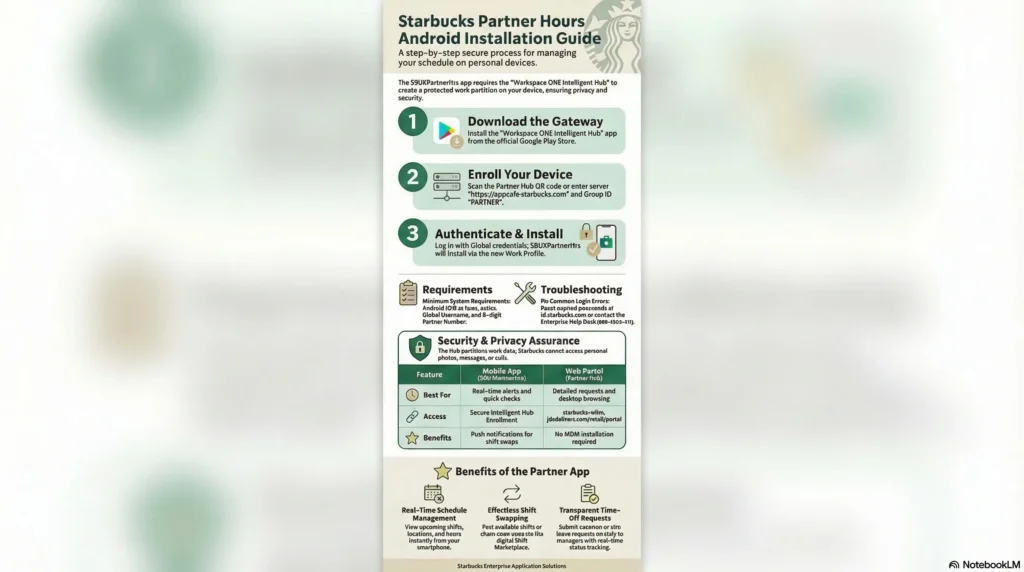
Are you ready to securely install the application? Follow this exact step-by-step guide to enroll your Android device and gain immediate access to your shift calendar.
Step 1 – Finding the correct download source Do not attempt to search for the schedule app itself on the public app store. Instead, open the Google Play Store on your Android device and search for an application called “Workspace ONE Intelligent Hub”. This is the official Mobile Device Management software that Starbucks uses to verify your employment identity and safely deploy internal tools.
Step 2 – Downloading the APK file and configuring servers Download and install the Workspace ONE Intelligent Hub. Once installed, launch the application. You will be prompted to either manually enter server details or scan a QR code. If your store manager has provided the physical Android QR code from the internal Starbucks Partner Hub, simply grant the app camera access and scan it. Alternatively, you can manually type the server URL as https://appcafe.starbucks.com and input the Group ID as PARTNER.
Step 3 – Authenticating your identity The Intelligent Hub will seamlessly route you to a secure Starbucks authentication gateway. Enter your designated Global Username (e.g., US12345678) and your established password. During this phase, the app may request permission to send push notifications; accepting this is highly recommended so you can receive instant alerts regarding shift updates.
Step 4 – Enabling the secure Work Profile After a successful login, carefully read and accept the presented privacy terms. The software will automatically begin configuring a dedicated “Work Profile” on your Android device. This specific partition acts as a secure vault, separating your personal applications from the Starbucks partner mobile access tools. This background process can take up to five minutes; remain patient, keep your screen active, and do not swipe the app closed.
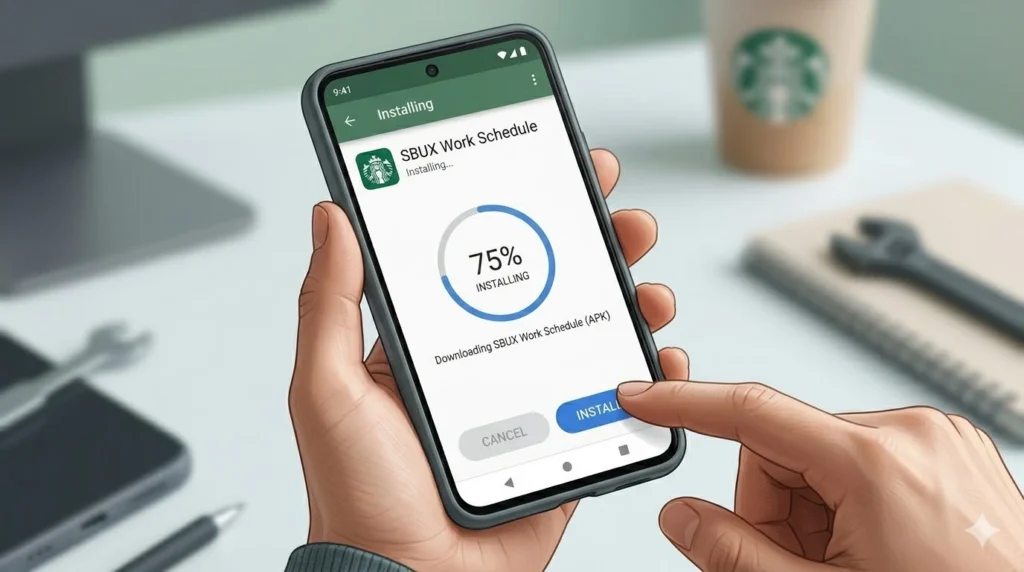
Step 5 – Installing the application Once the Android Work Profile is successfully generated, navigate back to your device’s home screen and open the Google Play Store application once more. Tap on your user profile icon located in the top right corner, and select the option to “Switch to Work Account” (this is frequently indicated by a small briefcase icon). Inside this securely managed version of the Play Store, you will find the official SBUXPartnerHrs application. Tap “Install” to complete the process.
How to Log in to Starbucks Partner Hours on Android.
Once the installation successfully finishes, locate the newly installed SBUXPartnerHrs app inside your device’s Work Profile app drawer.
Tap the application to launch it. You will be presented with a familiar Starbucks partner login screen. Enter your Global Username and your secure password one final time. If this is your very first time accessing the system, you may be prompted to agree to a final set of digital terms of use. Upon successful authentication, you will immediately bypass the gateway and enter your personalized schedule dashboard, where you can freely navigate between your upcoming shifts, past schedules, and the coverage marketplace.
Alternative Ways to Access Starbucks Partner Hours.
If your Android smartphone is damaged, lacks sufficient storage capacity, or you simply prefer not to install Mobile Device Management software onto your personal property, there are highly reliable alternative methods to manage your Starbucks schedule.
- Browser Login (Web Portal): The most robust and feature-rich alternative is the cloud-based web portal. By using any modern desktop or mobile internet browser, you can navigate directly to starbucks-wfmr.jdadelivers.com/retail/portal. By authenticating with your standard Global Username and password, you unlock access to the exact same scheduling parameters, time-off requests, and shift-swapping features available on the mobile app. Many partners choose to bookmark this specific URL on their phone’s home screen to replicate a native app experience without the complex installation.
- Starbucks Employee Portal: You can also securely access scheduling links and internal tools by logging into the broader Starbucks Partner Hub at partner.starbucks.com.
- Store Devices: Every retail Starbucks location is equipped with Back of House (BOH) computers or dedicated store tablets. Partners can safely log into the web portal during their shift from these devices to print schedules, verify hours, or request future time off without relying on personal hardware.
Requirements Before Installing Starbucks Partner Hours on Android.
Before you initiate the Starbucks Partner Hours Android installation, you must verify that your mobile device and employment credentials are properly configured. Attempting to bypass these prerequisites will inevitably result in authentication errors or stalled downloads.
- Device Compatibility: Your smartphone must be running Android 10.0 or a more recent operating system. Older Android versions lack the modern security architecture required to support the isolated enterprise work profile.
- Partner Credentials: You must possess an active 8-digit Starbucks partner number and your assigned Global Username. For partners located in the United States, the Global Username typically consists of the country code “US” followed immediately by your partner digits (e.g., US12345678).
- Active Password: You cannot access the mobile application if you have not already established a secure password through the Starbucks employee portal, known as Partner Central, or via the official password reset portal at id.starbucks.com/password.
- Network Connection: A stable internet connection is mandatory. When setting up the MDM profile, it is highly recommended to utilize a strong cellular data connection rather than relying on in-store Starbucks Wi-Fi. Public Wi-Fi networks frequently utilize firewalls that can block the secure enterprise handshake required during enrollment.
- Security Permissions: You must be willing to grant the installation hub specific device permissions, including temporary camera access to scan the enrollment QR code, and permission to establish the secure Work Profile.
Common Installation Problems and How to Fix Them.
Even when adhering strictly to the guidelines, deploying enterprise software can occasionally result in technical roadblocks. Here is a detailed breakdown of how to troubleshoot and fix the most frequent errors encountered during the installation phase.

Login Errors and “Invalid Role” Messages: If the application loops continuously back to the login screen or displays an “invalid role” error, it is almost exclusively an issue related to your credentials. Ensure that you are typing your 8-digit partner number correctly without accidental spaces. If your password has expired, you must reset it immediately by navigating your browser to id.starbucks.com/password. If the automated password reset email does not arrive in your inbox, meticulously check your spam and junk folders for messages originating from no-reply@starbucks.com, as generation can take up to 30 minutes.
System Error or Connectivity Failures: Encountering a “System Error” message typically points to a server timeout or a corrupted file registry. First, verify your network status by turning off Wi-Fi and utilizing your mobile cellular data. If the application continues to crash upon opening, you must clear the accumulated cache. Navigate to your Android device’s Settings > Apps > SBUXPartnerHrs > Storage, and tap Clear Cache. If the problem persists, selecting Clear Data will force a completely fresh restart of the app’s registry.
Security Restrictions and VPNs: Starbucks maintains strict security protocols that block connections appearing masked or suspicious. If you are running a Virtual Private Network (VPN) or an aggressive ad-blocker on your Android device, you must disable it prior to attempting the login sequence.
Outdated Android Version: If the Workspace ONE Intelligent Hub refuses to download or stalls mid-installation, verify your operating system. The software requires Android 10.0 or later to function properly.
Contacting IT Support: If you have exhausted all troubleshooting steps—including clearing the cache and reinstalling the app—you must escalate the issue. Call the Enterprise Help Desk (EHD) at 888-SBUX-411. They handle all IT-related authentication failures. Do not contact the Partner Contact Center (PCC) for app login issues, as they strictly manage HR matters such as payroll and benefits.
Security Tips When Installing the App.
Handling sensitive corporate information alongside your personal payroll data requires strict adherence to cybersecurity best practices.
The most critical safety warning for any partner is to actively avoid downloading fake APK files. Never trust a public app store search or third-party website offering a direct download for “Starbucks Partner Hours” or “Sbux Schedule”. Malicious software designed to mimic the employee app exists specifically to harvest and steal your valuable login credentials. Always utilize the official Workspace ONE Intelligent Hub enrollment method or rely strictly on the official web portal.
Furthermore, it is important to understand the privacy boundaries established by the Android Work Profile. Many partners express hesitation about installing MDM software, fearing that corporate IT will monitor their personal device usage. However, the Work Profile acts as a highly encrypted partition. Starbucks’ administration tools can only interact with the specific corporate applications housed inside that digital briefcase; the company absolutely cannot view your personal photograph gallery, read your SMS text messages, or track your personal web browsing history.
Benefits of Using Starbucks Partner Hours on Android.
Successfully completing the installation process unlocks a massive suite of benefits that dramatically streamline your daily retail experience.
The most prominent advantage is the profound scheduling flexibility it offers. Instead of calling the store or driving in on your day off to check a paper schedule, you receive real-time push notifications the moment your manager publishes the weekly hours. You can easily view your assigned shifts, review your accumulated hours, and check your digital pay stubs directly from your device.
The integrated Shift Marketplace is another incredible benefit. If an unexpected emergency arises, you can effortlessly post your shift to the marketplace and seek coverage from your coworkers. Conversely, if you are highly motivated to increase your weekly income, you can browse available open shifts across your district and volunteer to pick up extra hours. The app also simplifies administrative duties, allowing you to digitally submit time-off requests for vacations, update your preferred working availability, and utilize a quick QR code scanner to seamlessly clock in and out of your shifts.
Expert Tips for Managing Your Starbucks Schedule Efficiently.
To truly master your Starbucks work-life balance, you must approach the platform proactively.
Update Your Availability Constantly: Your stated availability establishes the exact parameters that the internal algorithms and your store manager use to generate the weekly schedules. If your college class schedule changes or you take on a new personal commitment, update your availability in the app immediately. Providing specific, precise time windows yields significantly better scheduling outcomes than offering vague preferences.
Leverage Shift Swaps Strategically: Be highly proactive regarding shift swaps. If you require coverage, post your shift to the marketplace as early as humanly possible. By picking up open shifts for your colleagues when they are in need, you build vital goodwill, making it substantially more likely that they will return the favor when you face a scheduling conflict.
Check Schedules Early and Often: Get into the habit of reviewing your schedule the moment it is posted (typically two weeks in advance). This allows you ample time to catch any potential conflicts and request coverage before the store is placed in a difficult operational position.