COMPLETE INSTALLATION GUIDE OF THE STARBUCKS PARTNER HOURS APP
Download and Install.
Introduction to the SBUXPartnerHrs Experience
Working in a fast-paced coffeehouse environment requires seamless communication, reliable scheduling, and tools that empower you to manage your time effectively. For Starbucks employees—internally known as “partners”—achieving this work-life balance is made possible through a dedicated digital workplace platform. If you have ever felt frustrated trying to balance your personal life with your weekly shifts, or if you simply want a better way to request time off without leaving paper notes for your store manager, you are in the right place.
How to Get W2 From Starbucks?
Tax season often brings a unique set of stresses for those in the retail and service industry. Whether you are a current barista managing the “morning peak” or a former employee who has moved on to new ventures, obtaining your w2 from Starbucks is a critical step in finalizing your annual financial responsibilities. Read More..
The Starbucks Partner Hours app (officially labeled as SBUXPartnerHrs) is a specialized, private enterprise application designed specifically for Starbucks employees. Because it connects directly to Starbucks’ internal databases and scheduling servers, you cannot simply download it like a regular social media or gaming app. Finding out how to get the Starbucks Partner Hours app requires a very specific enrollment process using a mobile device management (MDM) profile.
This comprehensive, step-by-step guide will walk you through everything you need to know about the Starbucks Partner Hours app. We will cover the complete Starbucks Partner Hours app download process, how to log in, how to troubleshoot common system errors, and how to utilize the app’s features to take total control of your Starbucks career.
At its core, Starbucks is a company that emphasizes the “partner” experience, aiming to create a bridge to a better future for its workforce. To support this mission, Starbucks transitioned from traditional, paper-based scheduling to a highly intuitive digital scheduling system known as Partner Hours.
The Starbucks Partner Hours app is a mobile scheduling tool that allows baristas, shift supervisors, and store managers to view their assigned shifts, manage their availability, and interact with the company’s internal workforce management system from their personal smartphones. By putting schedule management right in the palm of your hand, the app reduces the stress of uncertainty and ensures that every partner has a voice in when they work.
Every week, thousands of new and existing employees search for the Starbucks Partner Hours app download because it is a mandatory tool for modern Starbucks operations. However, because the app grants access to sensitive corporate data, payroll information, and internal shift calendars, it is completely hidden from the public Apple App Store and Google Play Store.
Instead, Starbucks utilizes a secure enterprise deployment system called the Workspace ONE Intelligent Hub to distribute the app safely to partner devices. This guide will demystify that installation process and ensure you never miss a schedule update again.
How to Become a Partner.
At Starbucks, employees are referred to as partners, a title intended to reflect a culture of respect, teamwork, and shared success. Becoming a partner involves a recruitment process focused on cultural fit and a structured onboarding and training program.
Recruitment and Application.
Starbucks uses several methods to find new talent:
- External Recruitment: The company utilizes external job advertisements, customer walk-ins, and employee referrals, where current partners recommend potential applicants. Interested individuals can find openings through dedicated “U.S. Careers” or “International Careers” sections on the company website.
- Internal Recruitment: Starbucks frequently promotes from within, using internal job postings and defined career paths for management personnel.
- Selection Criteria: Hiring decisions are based on merit, skills, and job-related qualifications. Beyond technical experience, the recruitment procedure screens candidates to ensure they are a “cultural match” for the brand.
Onboarding Process.
Once an offer is accepted, new hires begin the integration process:
- Taleo Onboarding: This system handles the initial integration, including policy adherence and benefits enrollment.
- Orientation: New partners attend an orientation that typically lasts between three and four hours. During this time, partners receive their Starbucks apron, complete required paperwork (such as I-9 or W-2 forms), take a store tour, and watch instructive videos about the company.
- Onboarding Portal: Starbucks provides a web portal that brings together necessary information from various sources to help new hires acclimate during their first 90 days.
Initial Training:
Training is considered the cornerstone of a partner’s career and begins immediately following orientation.
- Duration: The foundational training period varies by position and location but generally lasts between seven and twelve days.
- Components: Training includes a physical training manual and various computer modules, which can take three to five hours to complete.
- Roles: Baristas are trained on specific duties, including maintaining store standards, observing safety regulations, creating food and beverages, and establishing connections with customers.
New hires are often encouraged to download the Starbucks Partner Hours app early in their journey, as it is a mandatory tool for viewing work schedules and managing shifts from their mobile devices
Complete Starbucks Partner Hours App Download Process
OVERVIEW OF THE STARBUCKS PARTNER HOURS APP
Before diving into the installation process, it is important to understand what the Starbucks Partner Hours app actually does and why it is so critical to your daily routine.
Powered on the backend by Blue Yonder workforce management (WFMR) servers, the platform is a centralized hub for all operational scheduling. Whether you are trying to avoid a dreaded “clopen” (working a closing shift followed immediately by an opening shift) or you are looking to pick up extra hours, this tool provides immense flexibility.
Key Features of the App
Viewing Work Schedules: Managers typically post schedules at least 14 days (two weeks) in advance. The app allows you to view your upcoming shifts, including the exact dates, hours, and store locations, directly from your mobile device dashboard.
Checking and Managing Availability: Your availability dictates when you are willing and able to work. The app allows you to update your preferred working hours, which the system’s algorithm uses to help managers automatically generate balanced schedules.
Shift Swapping and The Shift Marketplace: If a personal emergency arises, you do not have to panic. The app features a Shift Marketplace that supports tens of thousands of shift trades weekly. You can post your shift for coverage, browse shifts that your coworkers have posted, and request to swap. All swaps require final approval from your store manager to ensure the store remains properly staffed with qualified personnel.
Time-Off Requests: Whether you are utilizing your accrued vacation time, applying for sick leave, or just need a personal day, the app allows you to submit time-off requests digitally. You can track the status of your request and see when your manager approves it.
Clocking In and Out: To minimize manual timesheet errors, the app provides a secure QR code system. You can pull up your unique barcode on the app and scan it at the store’s designated station to quickly clock in and out of your shifts.
Accessing Pay and Benefits Information: Beyond scheduling, the app acts as a gateway to your total rewards. You can view digital pay stubs, check your accumulated work hours, and review your eligibility for industry-leading benefits like the Starbucks College Achievement Plan (ASU tuition coverage) or Lyra mental health sessions.
Company Communications: Starbucks frequently uses the platform to push out corporate announcements, policy updates, and important operational news directly to partners, ensuring everyone stays informed without relying strictly on physical breakroom bulletin boards.
By centralizing these functions, the app heavily reduces the administrative burden on store managers and grants partners a tremendous amount of autonomy over their professional lives.
How to Download Starbucks Partner Hours App Complete Process
Preparing Your Device for Installation
Because you are dealing with an internal corporate tool, learning how to get the starbucks partner hours app requires gathering a few credentials and ensuring your smartphone meets specific security standards.
Requirements Before Downloading
Before you even open your phone’s app store, you must have the following ready:
Your Partner Number: Upon hiring, Starbucks assigns you a unique 8-digit partner number. This acts as your primary identifier within the company.
Global Username (Network ID): To access enterprise systems, you will use a Global Username. For U.S. partners, this is typically the country code “US” followed immediately by your 8-digit partner number (e.g., US12345678). Some portals may only require the digits without the prefix, so be prepared to try both.
An Active Password: You cannot log into the mobile app if you have not first set up your initial password via the Starbucks Partner Central portal. If you are a brand new hire, your manager will help you establish this during your first day of orientation.
Device Compatibility: For security and performance reasons, your smartphone must be relatively modern. Official Starbucks documentation states that Android devices must run Android 10.0 or later, and Apple iPhones must run iOS 13.0 or later.
A Stable Network Connection: It is highly recommended that you use a strong cellular data connection rather than public store Wi-Fi when first setting up the app. Public Wi-Fi networks (including the Starbucks customer Wi-Fi) can sometimes block the secure enterprise handshake required to download the profile.
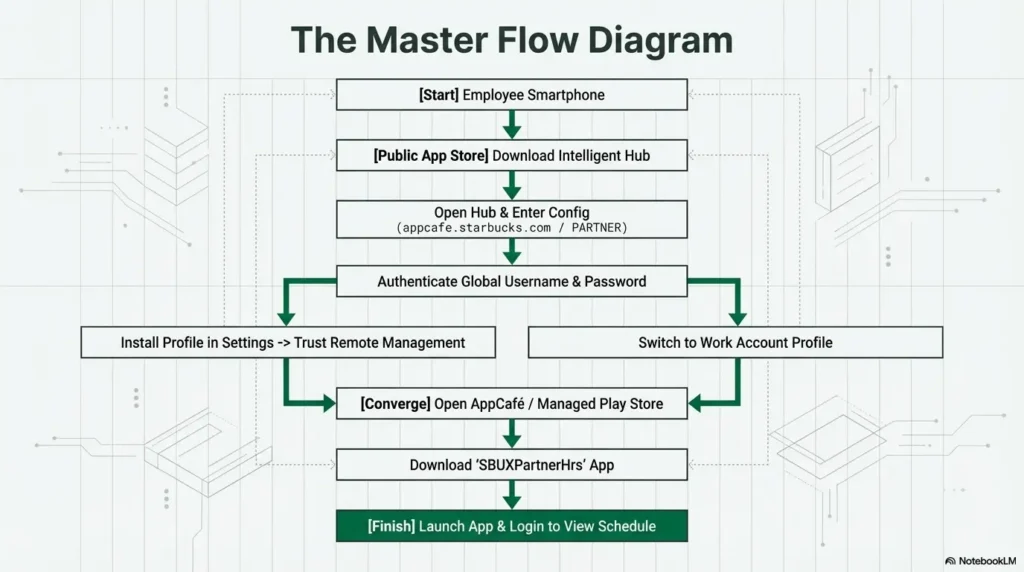
The Workspace ONE Intelligent Hub: Because the app is not public, you must first download an MDM (Mobile Device Management) platform called the Intelligent Hub. This hub communicates securely with Starbucks’ internal AppCafé server to fetch your scheduling software.
You can initiate the setup process either by manually typing in the required server addresses or by scanning an official Starbucks QR code. These QR codes are safely stored on the internal Starbucks Partner Hub website, which you can access via a store computer or desktop browser.
STARBUCKS PARTNER HOURS APP DOWNLOAD (INSTALLATION SUMMARY)
The starbucks partner hours app download process varies slightly depending on whether you are using an Android device or an Apple iPhone. Because this is an enterprise installation, it will take longer than downloading a standard application—often requiring 5 to 10 minutes of patience.
LOGGING IN AND ACCESSING.
Once the SBUXPartnerHrs app is successfully resting on your home screen, logging in is a straightforward process, but it requires strict attention to your credential formats.
When you open the app, you will be greeted by the Starbucks welcome screen. You must enter your Global Username. Remember, for retail partners, this is usually your country code attached to your partner number (e.g., US12345678).
After entering your username, input your password. Note that Starbucks passwords are highly case-sensitive. If this is your absolute first time ever logging into the system, the app may prompt you to complete a brief registration process, which might include verifying your email address, entering your name, and accepting the final digital terms of use.
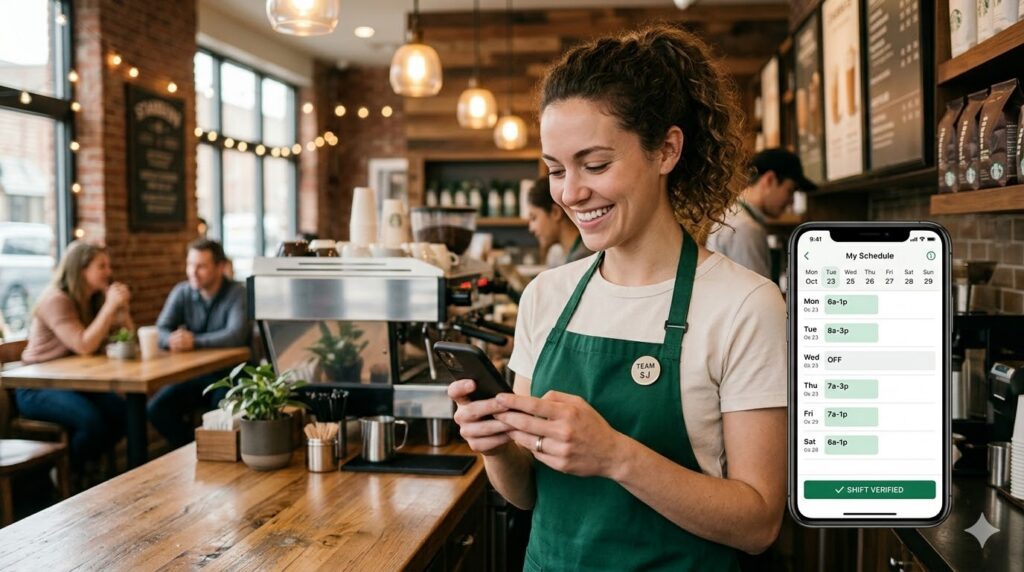
Upon a successful login, you will bypass the authentication gateway and enter your personalized schedule dashboard. Here, you will see a clean, organized view of your work week, your store’s schedule, and clear buttons prompting you to “Find Coverage,” manage your “Availability,” or request “Time-off”.
A Note on Security: Because this app grants direct access to your schedule and links to your pay stubs and benefits, protecting your login is vital. Never share your partner number or password with coworkers. The Intelligent Hub’s Work Profile ensures that your data is encrypted, but you remain the first line of defense against unauthorized account access.
COMMON INSTALLATION PROBLEMS.
Because deploying private enterprise software across thousands of different personal smartphone models is complex, partners frequently run into roadblocks. Below are the most common issues you might encounter during the installation and login phases.
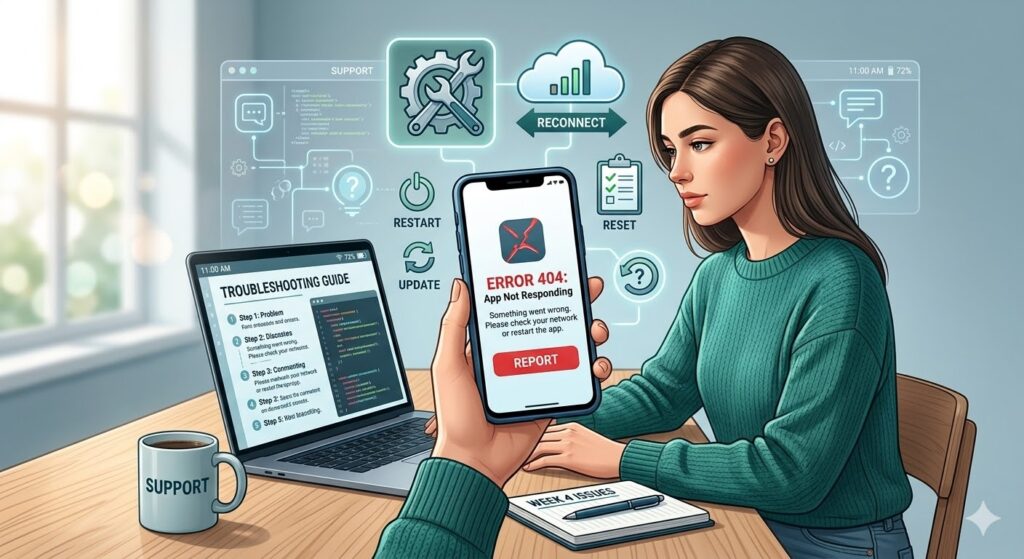
App Not Showing in the Public Store: The most frequent mistake new partners make is searching for “Starbucks Partner Hours,” “Teamworks,” or “Blue Yonder” directly in the Apple App Store or consumer Google Play Store. The official app will never appear there; you must go through the Intelligent Hub.
Intelligent Hub Stuck Loading or Freezing: During enrollment, the Hub may get stuck on a loading screen. This usually happens if you attempt the download on a restrictive public Wi-Fi network that blocks the enterprise handshake, or if you close the background apps too quickly.
QR Code Not Working: If the camera refuses to scan the QR code, it is almost always because the user denied the Intelligent Hub permission to access the device’s camera during the initial setup.
iOS Profile Not Trusted: iPhone users frequently download the Remote Management profile but forget to navigate manually into their iPhone Settings app to hit “Install” and “Trust”. The installation will halt entirely until this manual verification is complete.
Android Work Profile Errors: Android users often forget to switch their Google Play Store profile from their personal Gmail account over to the newly created “Work Account” tab, leaving them unable to find the SBUXPartnerHrs download button.
Login Failure / “Invalid Role”: You may get an authentication error looping you back to the login screen. This occurs due to expired passwords, case-sensitive typos, entering the wrong Network ID format, or if your store manager has not yet fully activated your profile in the central database.
Server Errors: Occasionally, the app will throw a “System Error.” This usually means the internal Starbucks WFMR servers are temporarily down for maintenance or experiencing a global outage.
TROUBLESHOOTING SUMMARY.
If you encounter any of the problems listed above, do not panic. Follow this comprehensive troubleshooting guide to implement actionable fixes and restore your access.
1. Fixing Connectivity and “System Errors” If you receive a system error, first check a website like DownDetector to see if Starbucks servers are experiencing a widespread outage. If the servers are up, the problem is likely your network. Swipe down on your phone and disable Wi-Fi, forcing the device to use your cellular data, which is often more reliable for enterprise handshakes. Additionally, if you use a Virtual Private Network (VPN) or a strict ad-blocker, disable it. Starbucks security protocols will block connections that look suspicious or masked.
2. Clearing App Cache and Data If the app is glitching, freezing, or stuck in a login loop, corrupted temporary files are usually to blame. For Android users, navigate to your device Settings, scroll down to Apps (or App Management), and find the SBUXPartnerHrs app. Tap on Storage, and hit Clear Cache. If that fails, go back and hit Clear Data (or Clear Storage) to give the app a clean slate.
3. Updating the Device and Reinstalling Outdated software is a primary culprit for crashing apps. Ensure your phone’s operating system is updated (iOS 13+ or Android 10+). Open your app store and verify the Intelligent Hub is updated to the latest version. If issues persist, delete both the SBUXPartnerHrs app and the Workspace ONE Intelligent Hub completely. Restart your phone, and repeat the entire installation process from Step 1.
4. Resetting Login Credentials If you are locked out due to a password error, you must reset it. Open a mobile or desktop web browser and navigate to https://id.starbucks.com/password or cloudid.starbucks.com. Click “Forgot Password” and enter your email or username. The reset link can take anywhere from 15 to 30 minutes to arrive in your inbox. Be sure to check your Spam, Junk, or Promotions folders for an email from no-reply@starbucks.com. Do not request the link multiple times in a row, as this can lock your account.
5. Contacting Starbucks IT Support If you have tried reinstalling, clearing your cache, toggling your network, and resetting your password, but you still cannot log in, you must escalate the issue. Call the Enterprise Help Desk (EHD) at (888) SBUX-411 (888-728-9411). They are available 24/7 to resolve technical roadblocks, MDM enrollment glitches, and password lockouts. Note: Do not call the Partner Contact Center (PCC) for app login failures. The PCC handles HR disputes, payroll, and benefits, not IT app troubleshooting.