Mastering Your Shifts with the Starbucks Partner Schedule App,
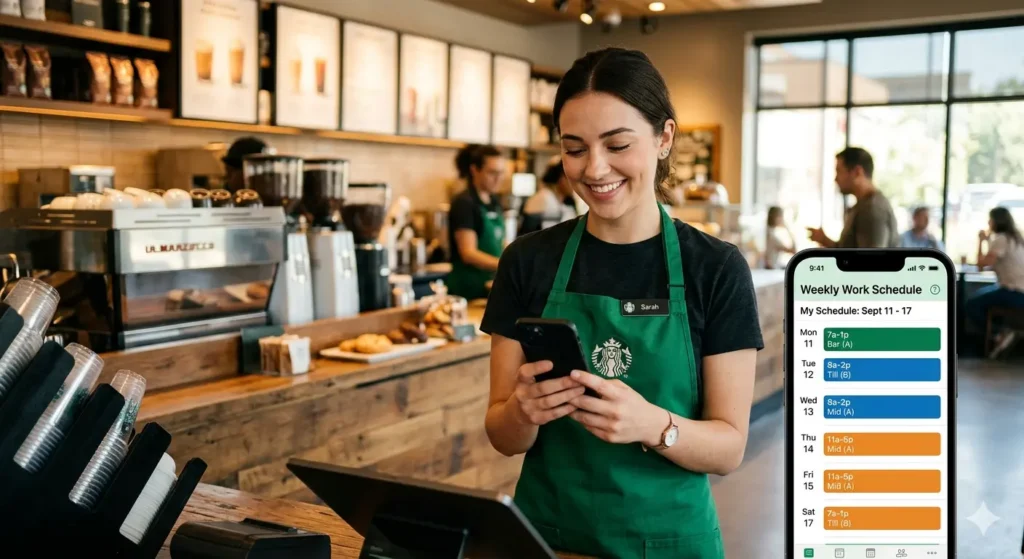
The starbucks partner schedule app is your gateway to a more balanced life, moving you away from the chaotic days of the “backroom paper schedule” and into a world of digital freedom. If you have ever felt that Sunday night spike of anxiety, wondering if you are opening or closing the next morning, you know exactly why this tool was created.
It replaces those blurry photos of the laminated schedule in the group chat with a sleek, real-time command center that fits right in your pocket. As your mentor, I want to show you how to truly master this technology to ensure you are never caught off guard by a shift change again.
How to Check Your Starbucks Weekly Schedule
Staying on top of your Starbucks weekly schedule is essential for maintaining a healthy work-life balance and ensuring you never miss a shift. Whether you are a new barista or a seasoned partner, Starbucks provides several digital tools to help you manage your time effectively.
Accessing Your Schedule via the Starbucks Partner Hours App.
The most popular method for partners to check Starbucks schedule details is through the official mobile application, often referred to as SBUXPartnerHrs. This private enterprise app is designed specifically for employee use rather than the general public
- Download and Installation: You must first install “Workspace ONE Intelligent Hub” from your device’s app store.
- Enrollment: Use the “mobile app quick reference” guide found on the Partner Hub to scan a QR code or manually enter the server address (
https://appcafe.starbucks.com) and Group ID (PARTNER). - Real-Time Updates: The app allows you to view upcoming shifts, request time off, and swap shifts directly from your smartphone.
Why the Starbucks Partner Schedule App is a Game-Changer for Your Work-Life Balance.
Managing a retail schedule used to be a full-time job in itself, but with the starbucks partner schedule app, the power is finally in your hands. This platform, often powered by WorkJam, isn’t just a list of times; it’s a living ecosystem where your professional and personal lives can finally coexist without the drama.
Taking Control: Real-Time Schedule Viewing.
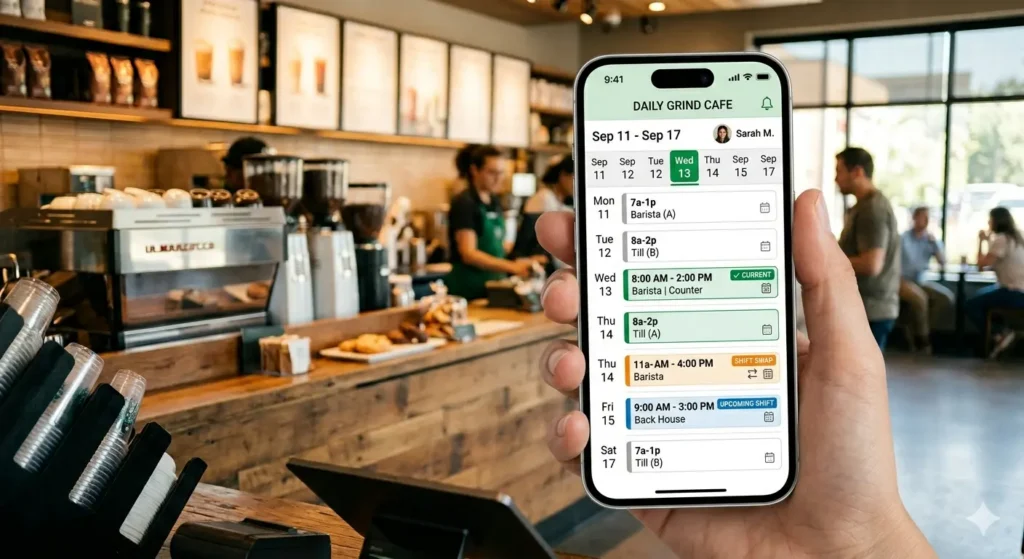
The core of the experience is the ability to see your shifts weeks in advance. Within the app, you can pull up a 14-day outlook that details not just when you start, but your specific break times and your total projected hours for the week. This level of transparency provides a certain mental peace; you can plan your study sessions for ASU, your gym time, or your family dinners with absolute confidence.
Another thing to keep in mind is that this schedule syncs in real-time across all your devices. If your manager makes a tweak to a Tuesday shift on Sunday night, you’ll see that change instantly, helping you avoid the stress of showing up at the wrong time.
The Social Side of Scheduling:
The Shift Marketplace :
The Shift Marketplace is perhaps the most beloved feature of the starbucks partner schedule app, and for good reason. It’s a digital board where you can post shifts you can’t work or grab extra hours to beef up your next paycheck. Every single week, partners across the company pick up approximately 30,000 shifts through this feature alone.
Beyond just the numbers, the Marketplace builds store culture. When you offer a shift or pick one up, you’re engaging in a form of social etiquette that keeps the team strong. It removes the awkwardness of calling around the store or begging people in the group chat. Instead, you select your shift, pick a teammate, and request a swap.
While it still requires a manager’s final “okay” to ensure the right skill mix is on the floor, the process is infinitely faster than the old-school methods.
Protecting Your Availability and Requesting Time Off.
We all have those moments where life throws a curveball—a doctor’s appointment, a sudden family event, or just a day where you need to recharge. The app makes requesting time off remarkably simple. You simply head to the time-off section, pick your dates, and hit submit.
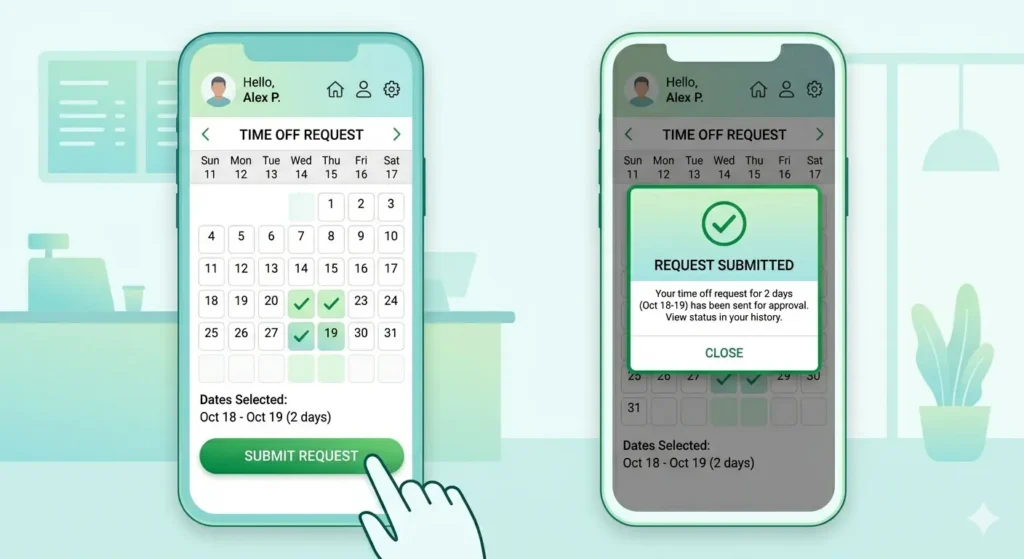
Speaking of your time off, keeping your availability updated is your primary defense against burnout. The system uses Blue Yonder technology to forecast staffing needs, and the more precise you are with your availability windows, the better the system can work for you. Instead of just saying you’re “available on Mondays,” providing a specific window like “6:00 AM to 2:00 PM” ensures the “algorithm” and your manager can schedule you during times that actually fit your life.
Staying Informed with Push Notifications.
The push-alert lifestyle is all about staying informed without having to constantly check your phone. By enabling notifications, you get a ping the moment a new schedule is posted, when a time-off request is approved, or if an urgent shift needs covering. About 68% of partners prefer using the mobile app specifically for these instant alerts. It’s the difference between seeing a schedule change while you’re still at home versus finding out when you walk through the door for a shift you thought started an hour later.
Choosing Your Platform: Mobile App vs. Partner Hub Desktop.
While the mobile version of the starbucks partner schedule app is perfect for quick checks and on-the-go swaps, there are times when you’ll want to sit down and use the desktop version. Understanding which tool to use when is part of being a “pro” partner.
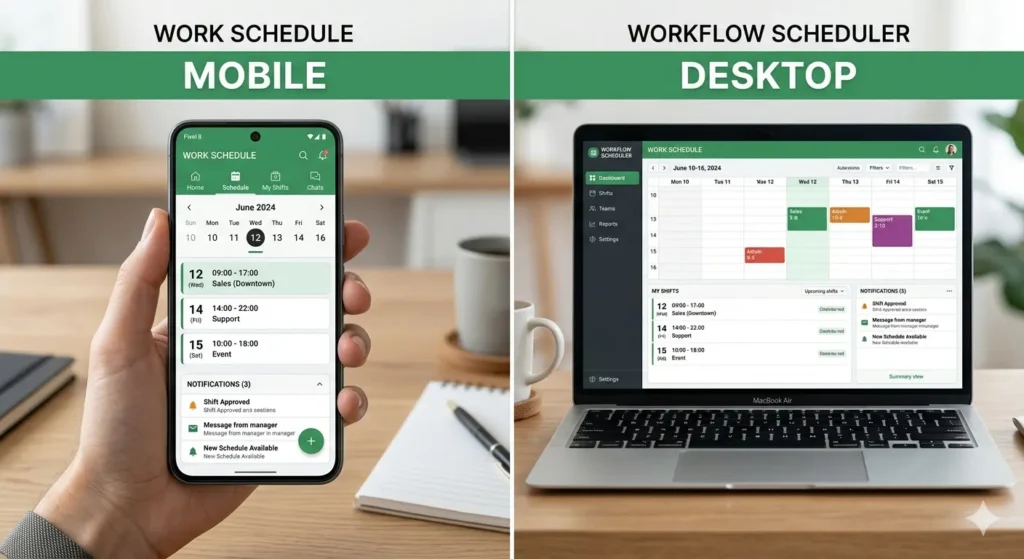
The mobile app, often installed via the Intelligent Hub (Workspace ONE), is your daily companion. It’s optimized for speed and alerts. However, for a “deep-dive” into your career and finances, you’ll want to head to Partner Central on a desktop. This is where you can view detailed pay statements, track your long-term payroll hours, manage your taxes, and explore the full suite of insurance and education benefits. A great pro move is to use your phone for the daily peeks at your calendar and the desktop for planning out your PTO weeks in advance; partners who do this report far fewer scheduling mix-ups.
Integrating Your Schedule with the “Total Partner” Lifestyle.
At Starbucks, your schedule is more than just a list of shifts; it is your gateway to a comprehensive benefits package that is designed to support you at every stage of your life. Understanding how your hours interact with these perks is vital.
The 4-Minute Rule and Team Dynamics:
You might hear your shift supervisors talk about the 4-minute rule. This is a service speed goal where we aim to deliver a customer’s drink in four minutes or less during peak times. You might wonder what this has to do with an app, but the answer is everything. When we use the starbucks partner schedule app to manage our shifts effectively—swapping when we can’t make it and keeping our availability accurate—we ensure the store is properly staffed. A well-staffed floor is a fast floor, and hitting that 4-minute goal means a smoother shift for you and a better experience for the customer.
The 12-Hour Rule: Your Gateway to Elite Benefits:
One of the most important things to track in your app is your average weekly hours. To remain eligible for our industry-leading benefits, partners generally need to maintain an average of at least 12 hours per week over a rolling 13-week period. This is your “threshold for benefits.” If you see your average dipping, use the Shift Marketplace to pick up extra hours. Staying above this 12-hour mark is what keeps your health insurance, your 401k matching, and your ASU tuition coverage active.
Comparison Between Starbucks Partner Schedule/Teamworks
| Feature | Starbucks Partner Schedule | Starbucks Teamworks |
| Definition | The actual shift roster, calendar, or set of work timing data generated by the management system; often posted as paper schedules in store backrooms. | The comprehensive digital scheduling platform, workforce management system, and online tool used for staff coordination. |
| Purpose | To provide partners with their specific assigned working hours, job roles, and shift details for a set period. | To facilitate workforce management, labor scheduling, attendance tracking, and store-level communication. |
| What it shows | Individual shift start/end times, specific dates, assigned roles (e.g., barista, supervisor), and total weekly hours. | Store-wide staffing levels, labor budgets, partner availability, paystubs, benefits information, and company news. |
| Main function | Displaying, communicating, and coordinating finalized work rotations and attendance tracking for employees. | The backend generation of schedules, balancing business needs with availability, and providing a platform for requests. |
| User access | Accessed by partners (baristas and supervisors) via the shift roster interface, mobile app sync, or physical postings. | Accessed by managers for administration and by partners via digital portals or mobile apps using a Global Username. |
| Shift viewing | Static output showing specific daily/weekly shifts, typically available up to four weeks in advance. | The interactive system used to navigate, search, and view the full store roster or personal calendar in real-time. |
| Shift swapping | The resulting updated data or “outcome” reflected in the roster after a trade is finalized and approved. | The interactive tool and interface used to post, claim, and exchange shifts with coworkers. |
| Time-off requests | The final result (vacant days or “unavailable” status) appearing on the roster after a request is granted. | The active module and digital interface where vacation, leave, or PTO requests are submitted and tracked. |
| Availability updates | Reflected in future rotations; determines the constraints and preferred hours for the generated schedule. | The digital self-service tool where partners input and manage recurring or one-time availability changes. |
| Manager approvals | The finalized, signed-off version of the labor plan appearing as an endpoint once approved. | The administrative dashboard used by managers to review, edit, and authorize shift swaps, time-off, and availability. |
| Mobile access | Shift data viewed on mobile devices via web sync, PDF, or the schedule data within an app. | The mobile-responsive application (such as SBUXPartnerHRS or WorkJam) that provides the system interface. |
| Whether it is a tool or data | Operational Data (The output / shift roster). | Management Tool (The platform / software application). |
| Common usage term | “The Schedule,” “The Roster,” “My Shifts,” or “My Schedule.” | “Teamworks,” “Partner Hours,” “The App,” or “Scheduling System.” |
| Current naming / newer system equivalent | Shift Roster, Workjam Roster, or Partner Hours shift data. | Starbucks Partner Hours, WorkJam, Partner Central, or Intelligent Hub (licensed stores). |
Exploring the “Total Partner” Perks at for Starbucks.
- Education: The Starbucks College Achievement Plan (SCAP) offers 100% upfront tuition coverage for a bachelor’s degree through Arizona State University. There are currently over 25,000 partners enrolled, with thousands having graduated debt-free.
- Mental Health: We get 20 free therapy sessions a year through Lyra, plus a free subscription to the Headspace app to help manage the stress of a busy holiday peak.
- Financial Wellness: The Siren Card is a free tool that automatically helps optimize your credit score. Partners using it have seen their scores jump by an average of 90 points, with some seeing increases of over 200 points.
- Daily Perks: Don’t forget your free weekly coffee or tea markout, your “infinite” drinks while on shift, and your free Spotify Premium subscription.
Pro Tips for Efficient Schedule Management
Managing your time at Starbucks is easier when you use these expert strategies:
- Weekly Check-In: New schedules are typically posted on a specific day each week (often Monday or Tuesday depending on your region); make it a habit to check every Tuesday morning.
- Enable Notifications: Turn on push notifications in the Partner Hours app to receive instant alerts when a manager approves a shift swap or time-off request.
- Calendar Sync: While the app doesn’t always sync automatically with personal calendars, many partners manually add their shifts immediately after the schedule is released to avoid conflicts.
- Verify Last Minute: Always check your schedule 24 hours before a shift to ensure no emergency adjustments were made by leadership,
The Technical Deep-Dive: Security, Privacy, and Workspace ONE.
I know that installing a “work profile” on your personal phone can feel a bit invasive, so let’s talk about how the technology actually works to protect you.
Installing Workspace ONE and the Work Profile.
You won’t find the starbucks partner schedule app by simply searching the public App Store or Google Play Store. Instead, you must first download the Workspace ONE Intelligent Hub. You’ll then scan a unique QR code provided by your store manager to enroll your device. This process creates a “Work Profile” on your phone—essentially a secure, walled-off container just for Starbucks apps.
Humanizing the Privacy Aspect: What Can They See?
One of the most common questions I get from new hires is, “Can the company see my texts if I install this?” The answer is a resounding no. Because of how the Work Profile is designed, the system cannot access your personal photos, your private text messages (SMS/iMessages), your call logs, or any personal apps you’ve installed from the public store. It can only interact with the specific Starbucks business apps within that secure bubble. This setup is designed to keep the company’s data safe while ensuring your private life stays completely private.
Troubleshooting Common Glitches.
If you run into an “Invalid Role” or “Session Expired” error, don’t worry, it’s a common hiccup. Most of the time, this happens because your password has expired. You’ll need to go to Partner Central (partnercentral.starbucks.com) on a web browser and reset your password there first. The app won’t accept your login until your main account is updated. If the app itself is being glitchy, clearing your cache (on Android) or a quick “offload” and reinstall of the app usually fixes the problem in about 15 minutes.
How do I download the app using the QR code?
Because the starbucks partner schedule app is a private enterprise application, you won’t find it by simply searching the public App Store or Google Play Store. This is a multi-step security process designed to keep your personal information and company data safe
Step 1: Request the Official QR Code
The very first thing you need to do is talk to your store manager. Every store has an official QR code that is unique to the partner scheduling system. You cannot use a generic code or one found randomly online; it must be the official one provided by your management team
Step 2: The Installation Process (iOS and Android).
While the process is similar for both platforms, there are slight differences in how your phone handles the “work” environment.
- For iOS Partners: Ensure your device is running iOS 13.0 or later. First, download the Workspace ONE Intelligent Hub from the App Store. Once installed, open the Intelligent Hub and scan the QR code provided by your manager. You will be prompted to authenticate using your Global Username (e.g., US12345678@starbucks.com) and your password. After enrollment is complete, the SBUXPartnerHrs app should automatically install on your device.
- For Android Partners: Your device should be running Android 10.0 or later. Similar to iOS, you start by downloading the Workspace ONE Intelligent Hub from the Google Play Store. Scan the manager’s QR code within the Hub app and follow the authentication prompts. On Android, the SBUXPartnerHrs app will typically install within a dedicated Work Profile, which keeps your work apps completely separate from your personal ones.
Step 3: First-Time Login and Activation.
Before you can dive into your schedule, you must ensure your account is activated through Partner Central. If you try to log in and get a “session expired” or “invalid role” error, it’s usually a sign that your password needs to be reset at partnercentral.starbucks.com first. Once your password is updated there, the app will accept your login, and your shift calendar—linked to your specific store location—will become visible.
Features of the Starbucks Partner Schedule App.
Once you have the app installed, you aren’t just looking at a calendar; you’re looking at a tool designed to empower your “Green Apron” lifestyle.
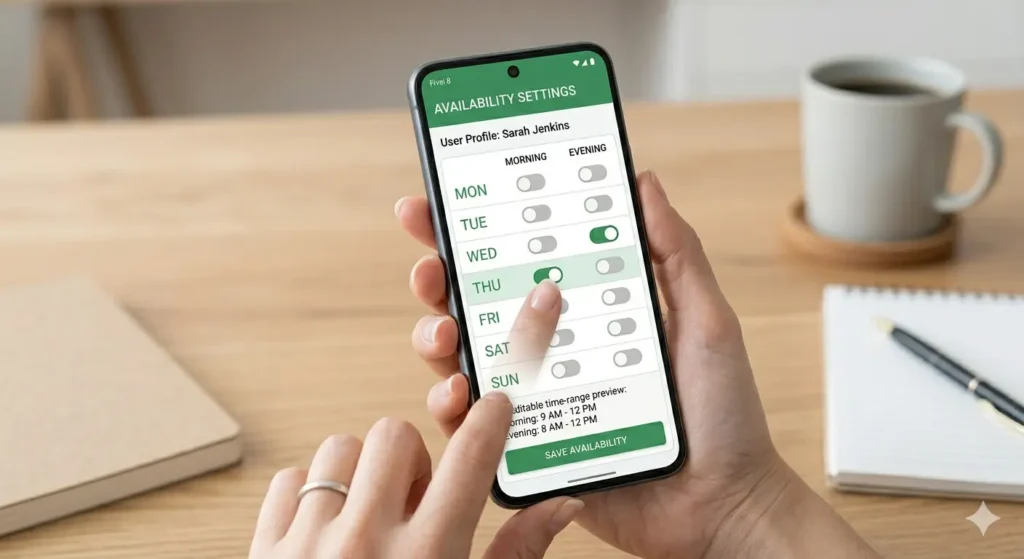
Real-Time Schedule Viewing and Mental Peace.
The primary feature is, of course, viewing your schedule. The app provides a 14-day outlook, allowing you to see your shifts, assigned break times, and total weekly hours. Imagine it’s Sunday night; instead of texting a coworker for a photo of the backroom wall, you can simply glance at your phone and see exactly when you need to be on the floor the next morning. This real-time synchronization means if a manager tweaks a shift, you see it instantly, helping you avoid showing up early or late.
Time-Off and Availability: The 3-Week Rule
Requesting time off is no longer a matter of hoping a sticky note doesn’t fall behind the desk. In the starbucks partner schedule app, you can pick your dates, add a note, and track your request through the approval process. To give your manager the best chance of approving your request, aim to submit it as far in advance as possible—ideally at least three weeks out—to account for scheduling cycles.
Similarly, you can update your availability directly in the system. Whether your class schedule changed or you need to block out family time, providing specific time windows (like “Monday 6 AM to 2 PM”) rather than general preferences helps the Blue Yonder technology generate a schedule that actually works for your life.
The Power of Push Notifications.
If you want to stay informed without constantly checking your phone, enable push notifications. You’ll get a ping the second a new schedule is posted, an alert if a time-off request is approved, and a notification if an urgent shift needs coverage. About 68% of partners prefer using the mobile app for this very reason—the “push-alert” lifestyle keeps you in the loop effortlessly.
Mobile vs. Desktop: Navigating the Partner Hub.
While the mobile app is your daily companion for quick checks and shift swaps, the Partner Hub (accessible via desktop at partnercentral.starbucks.com) is your “deep-dive” command center.
- Mobile Shines for: On-the-go shift viewing, receiving instant alerts, and using the Shift Marketplace
- Desktop is Best for: Detailed payroll tracking, managing insurance and benefits, accessing tax documents, and planning vacation weeks in advance.
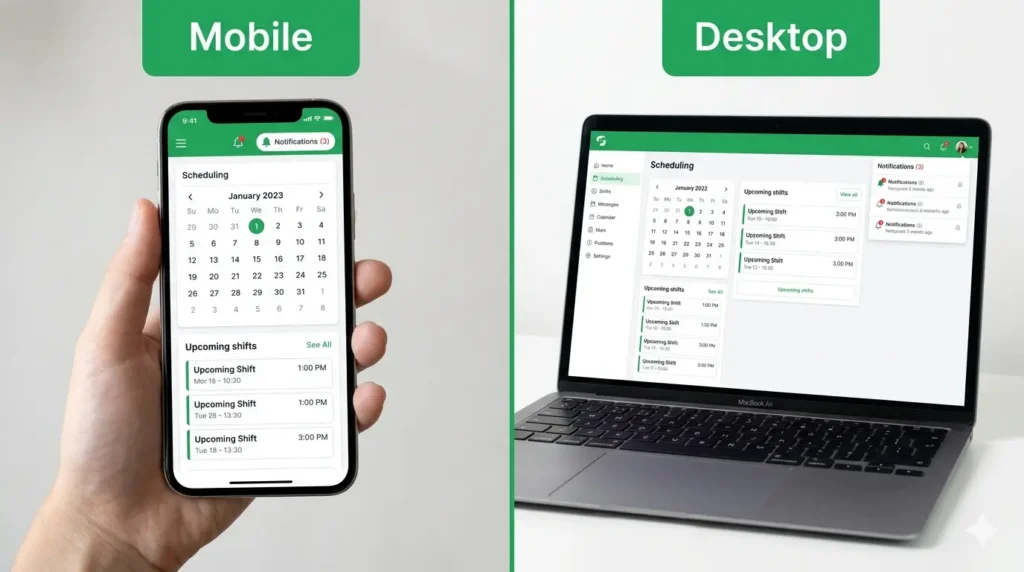
A pro move used by many successful partners is to use the mobile app for daily peeks and the desktop portal for long-term planning. Partners who follow this strategy report significantly fewer scheduling mix-ups and a better understanding of their total compensation.